

Using Shifts in Riskcast
Last updated: Apr 24, 2026
343
views

Using Shifts in Riskcast
Riskcast allows you to track multiple crews working different shifts within the same project. By enabling shifts, crew leads can create and manage timecards specific to Shift 1, Shift 2, or Shift 3—making it easier to organize labor, improve reporting accuracy, and separate day vs. night work.
When to Use Shifts
Shifts are especially useful when:
- Multiple crews work different times (e.g., day shift vs. night shift)
- You need to track labor separately for payroll or reporting
- Projects run continuously across multiple time periods
Enabling Shifts on a Project
To turn on shifts:
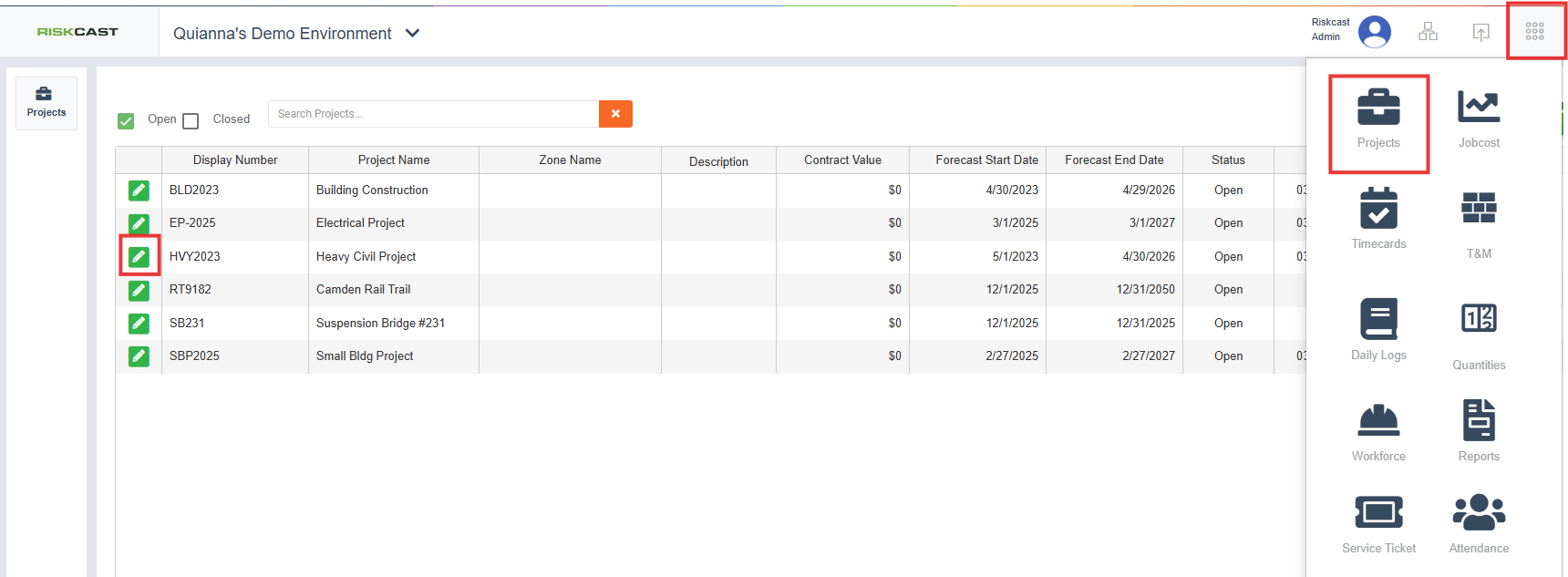
- Navigate to the Projects module from the Riskcast home page
- Select the project you want to update
- Click the green pencil icon to edit the project
- Go to the Options tab
- Select the Timecards section
- Scroll to Allow Shifts
- Toggle this setting on
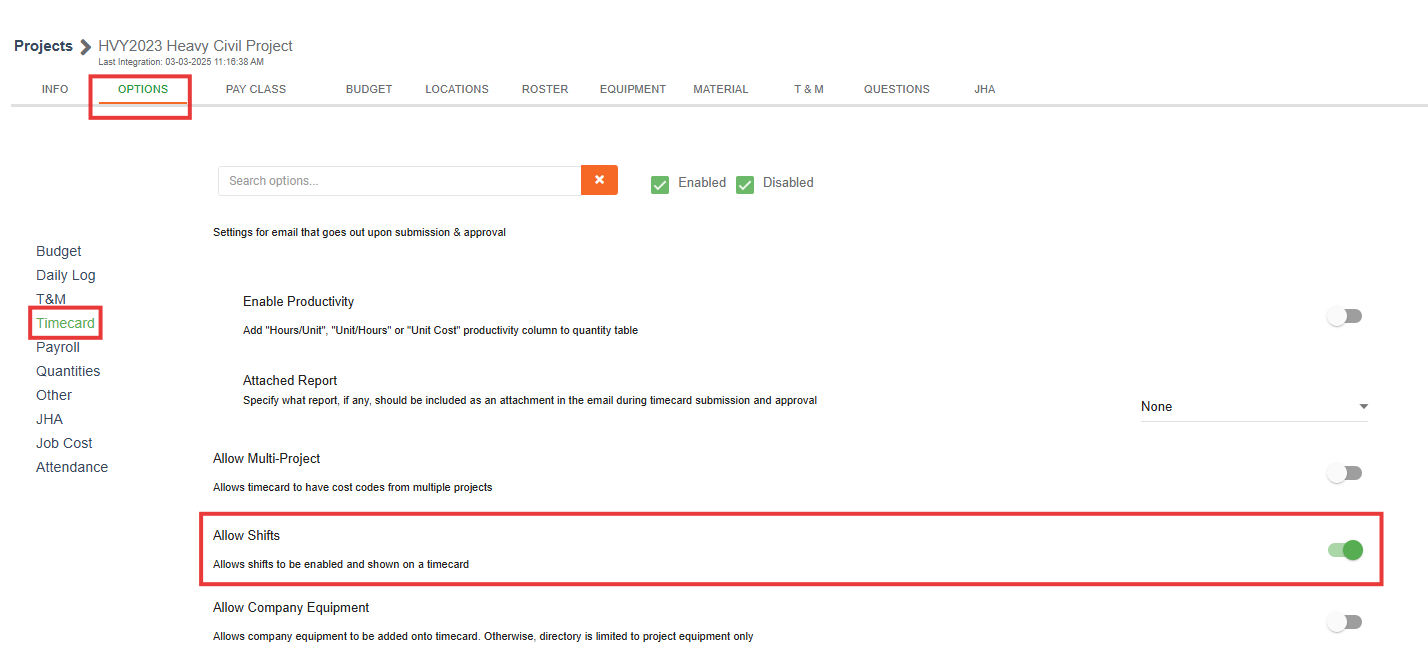
Once enabled, shifts will be available on all timecards for that project.
Using Shifts in Timecards
After enabling shifts:
- Navigate to the Timecards module
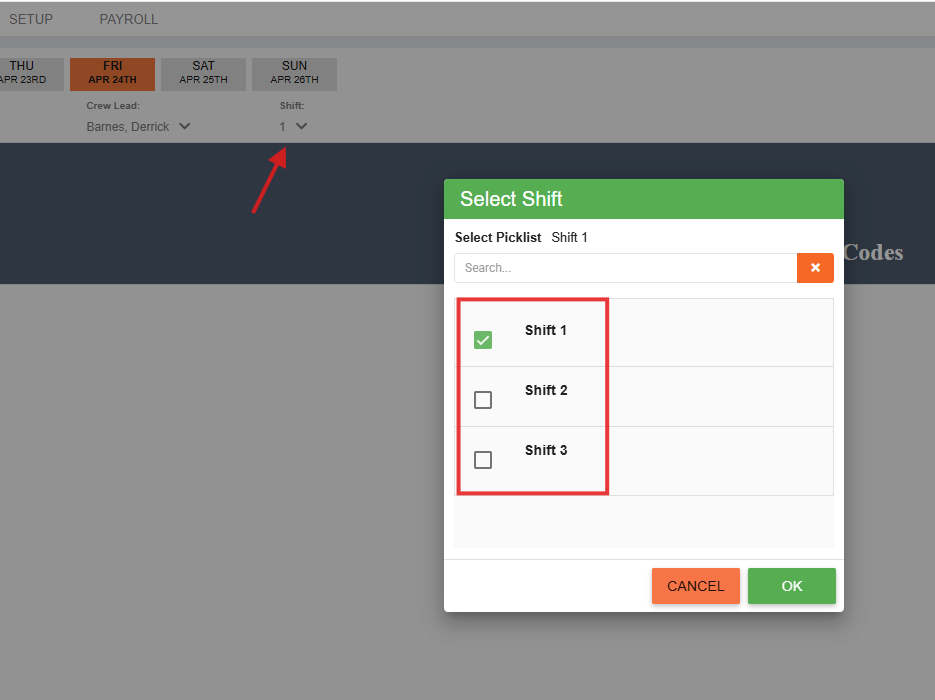
- At the top of the timecard, you’ll see a Shift selector
- Choose the appropriate shift (Shift 1, 2, or 3) before entering hours
- Each shift creates a separate timecard, allowing you to track different crews independently
You can switch between shifts using the dropdown to manage multiple crews working on the same day.
Viewing Shifts in Calendar View
In the timecard calendar:
- Shifts are displayed next to the timecard name
- Formatting appears as:
- (S1) = Shift 1
- (S2) = Shift 2
- (S3) = Shift 3
This makes it easy to quickly identify which crew worked which shift.
Reporting on Shifts
Shift data can be used across reporting tools, including:
- Payroll Analysis
- Payroll Dashboard
You can filter by shift to:
- Compare labor across different work periods
- Analyze productivity by crew or time of day
- Separate standard vs. night or overtime work
Best Practices
- Standardize shift definitions early
Align internally on what Shift 1, 2, and 3 represent (e.g., day, evening, night) to avoid confusion. - Train crew leads before rollout
Ensure they select the correct shift before entering hours—this prevents reporting issues later. - Use shifts consistently across projects
Keeping naming and usage consistent improves reporting accuracy across your organization. - Avoid mixing crews within a single shift
Each shift should represent a distinct group or time period for cleaner data. - Leverage reporting filters
Regularly review shift-based reports to identify trends, inefficiencies, or labor cost differences.

