


 32
32
Overview
The Riskcast Time & Materials (T&M) module gives you full control and visibility over time and materials billable to your projects. It helps you track work performed, route tickets for approval, and prepare documentation for invoicing.
Before You Begin: Required Project Setup
The steps below are covered in detail in a separate Knowledge Base Article. If you have not completed this configuration yet, use the link below for step-by-step instructions.
-
🔧 Enable a Project for Time & Materials Your project must be configured to allow Time & Materials tracking before tickets can be created.
-
👤 Add Time & Materials Approvers Approvers control the review and approval process for T&M tickets.
-
💲 Create a Cost Event for T&M Work Cost Events connect time and materials activity to billable tracking within the project.
Create a Billing Rate Table
Billing Rates determine how time and equipment are priced on T&M tickets.
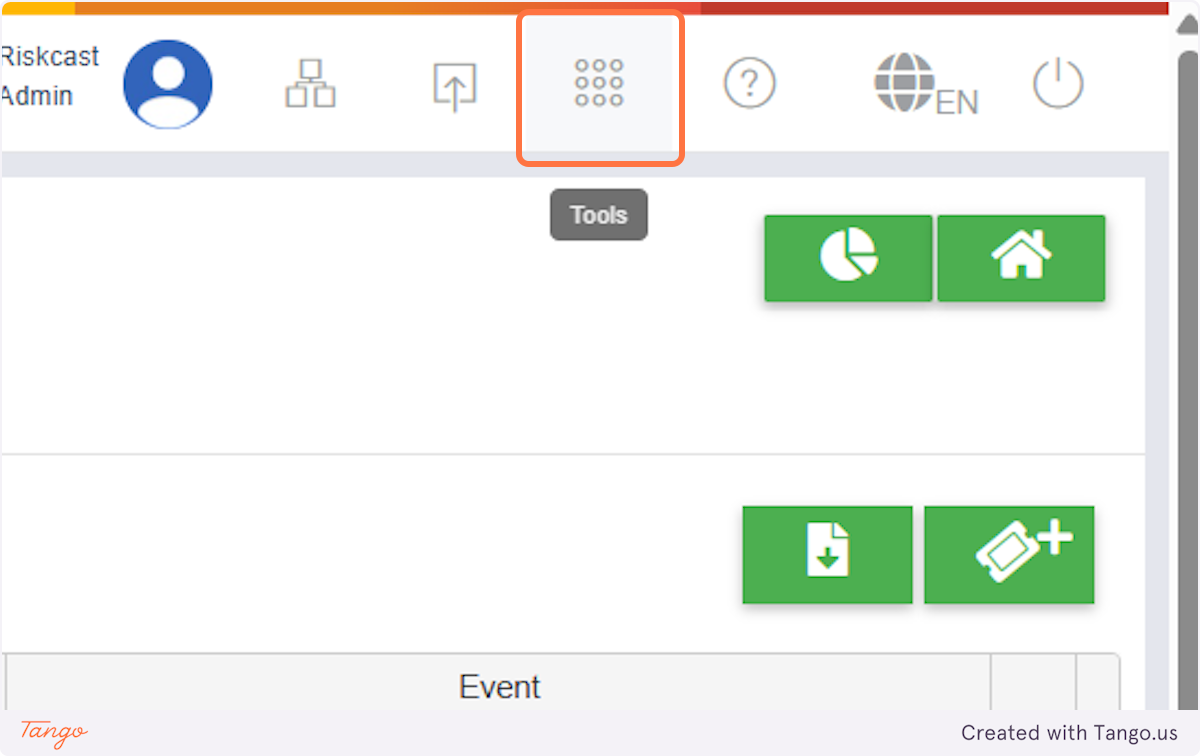
1. Click on Tools
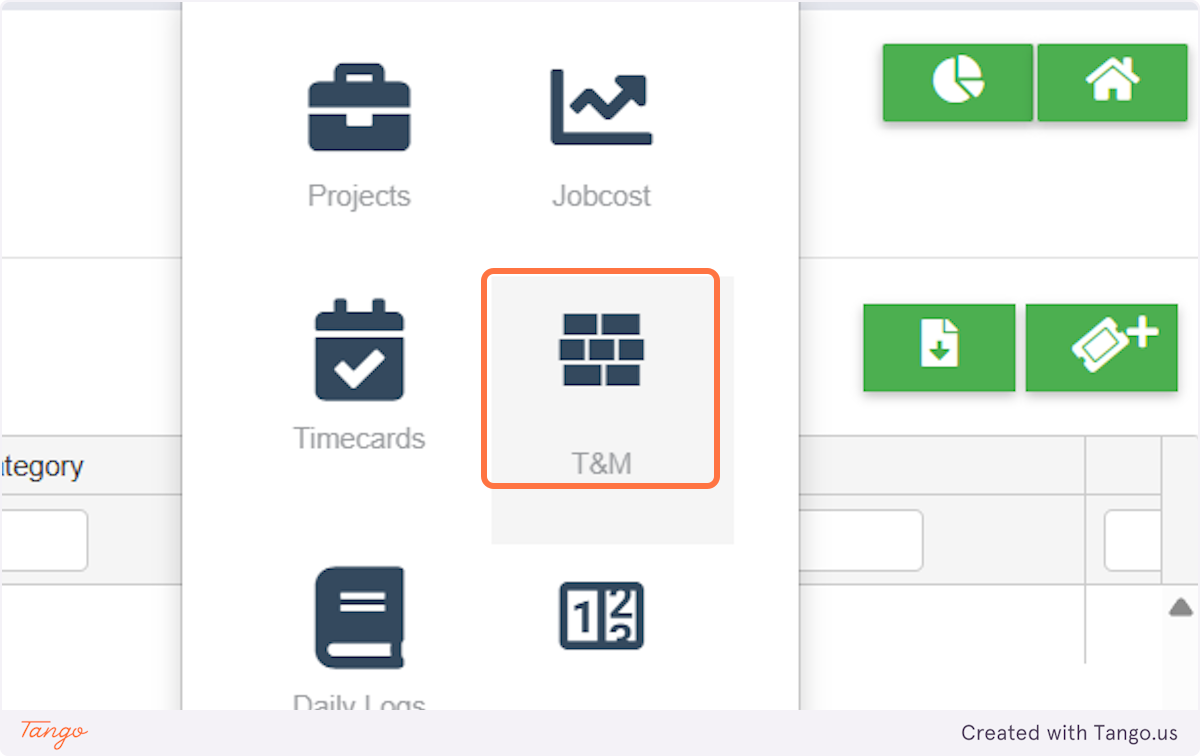
2. Click on T&M
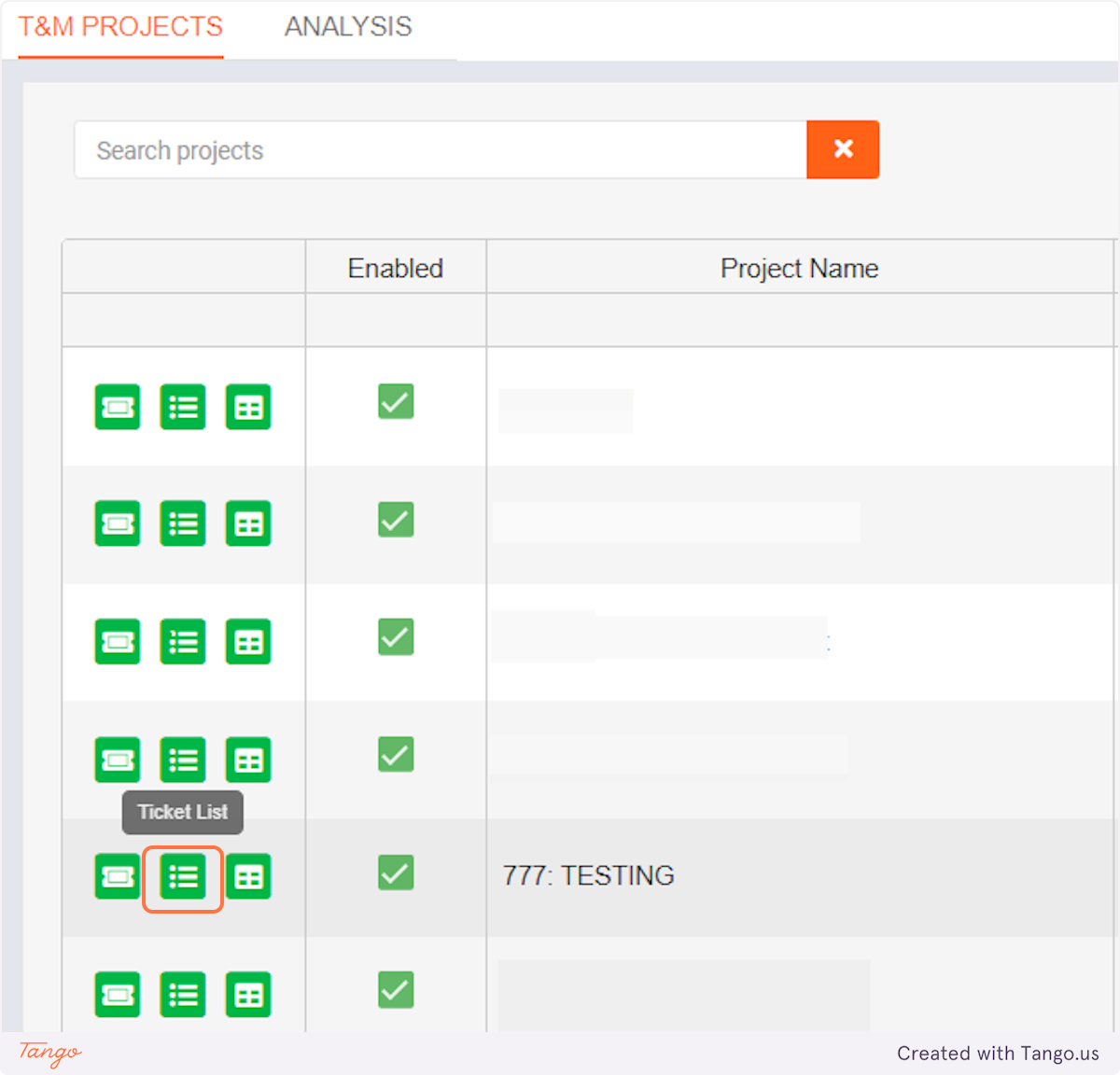
3. Click on Ticket List or New Ticket
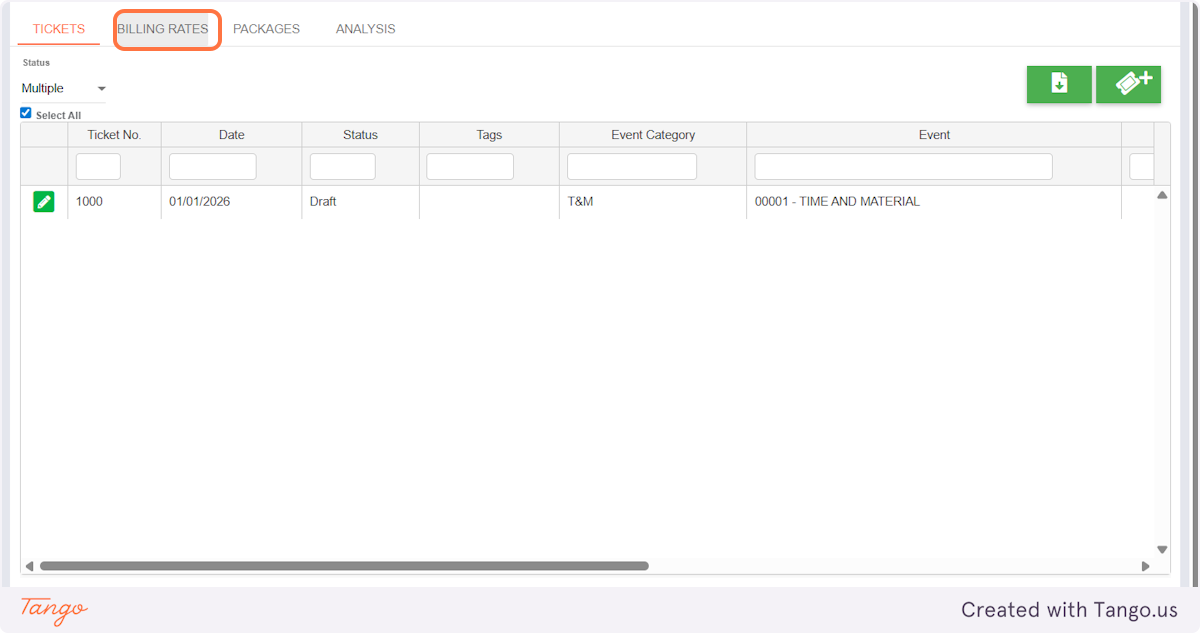
4. Click on Billing Rates
5. Under Labor (or Equipment) Click on +
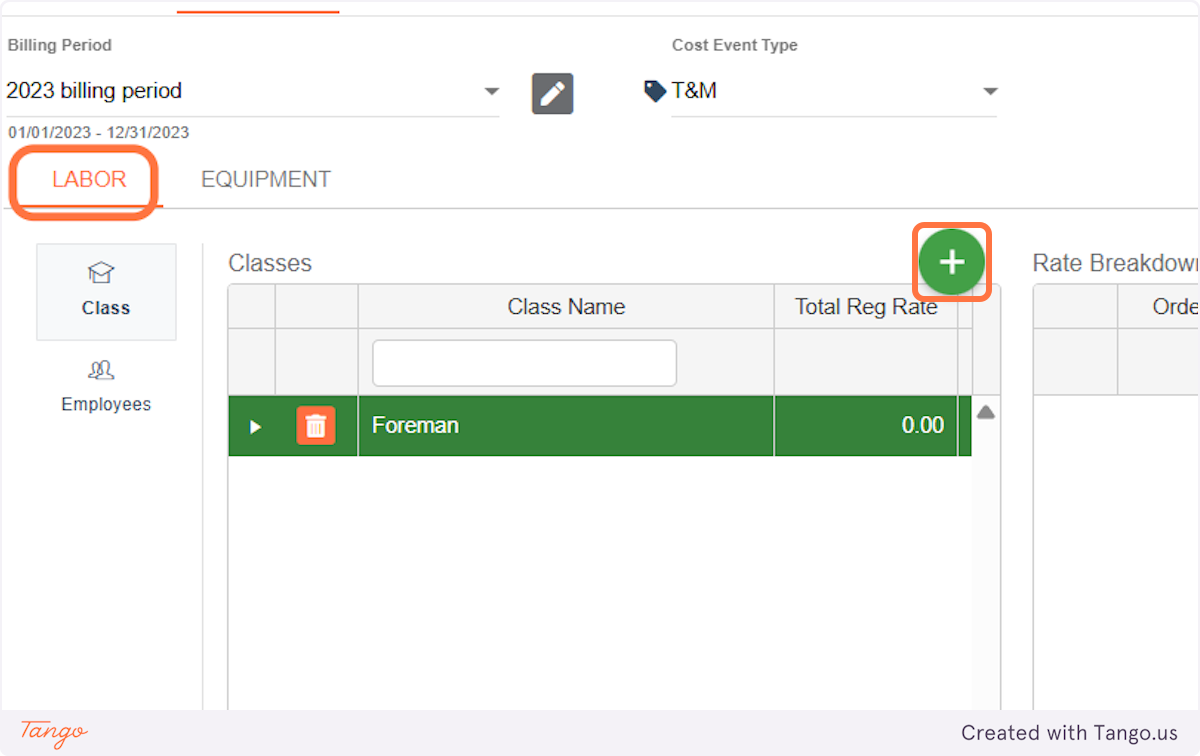
6. Add a billing class name
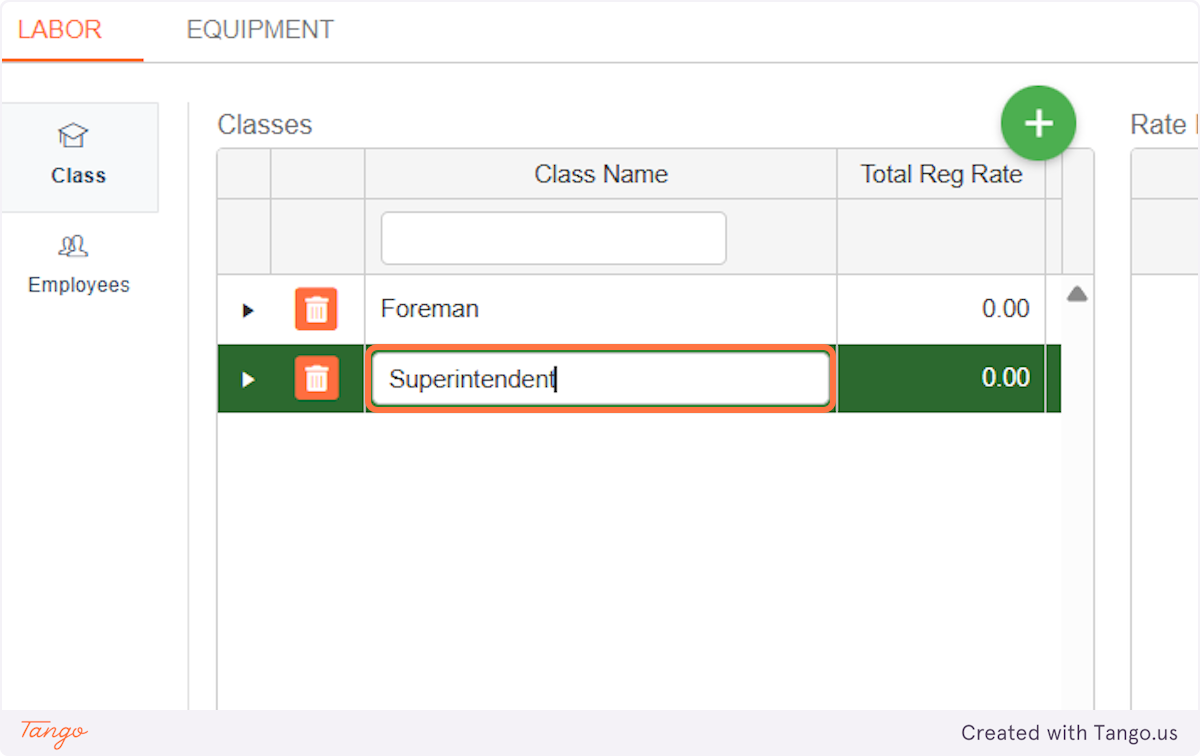
7. Click arrow to Expand
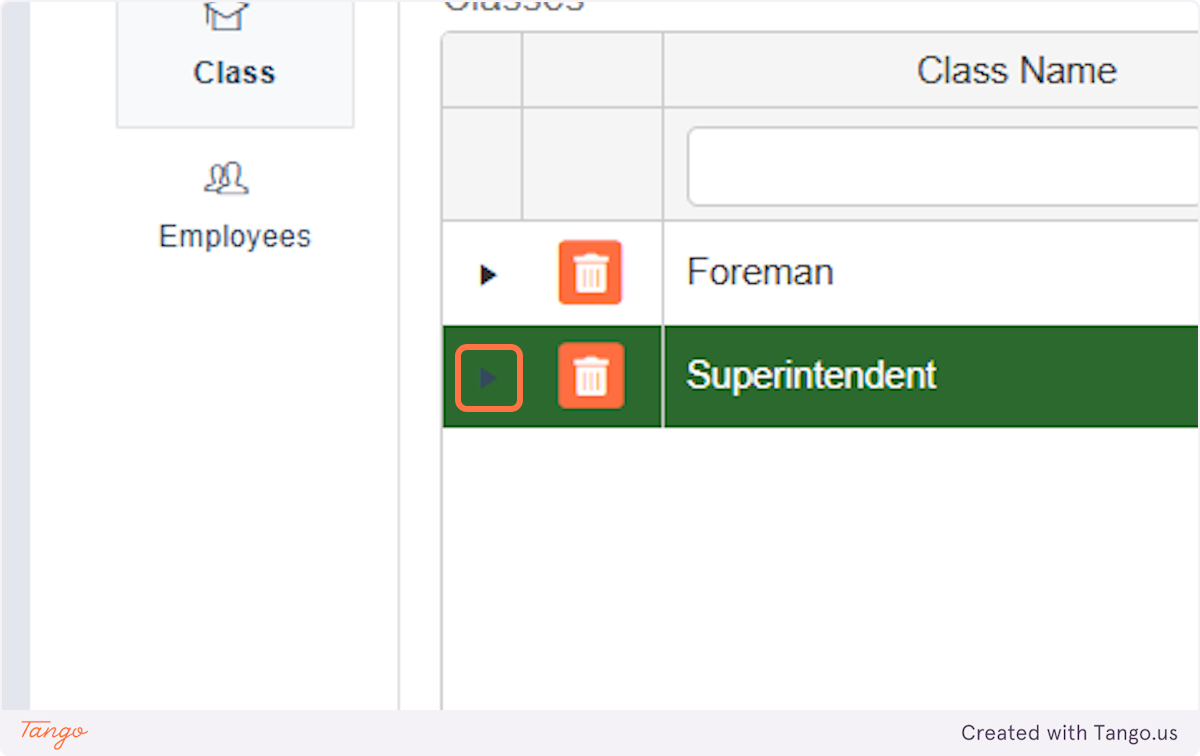
8. Click on Add to add employees' + rates
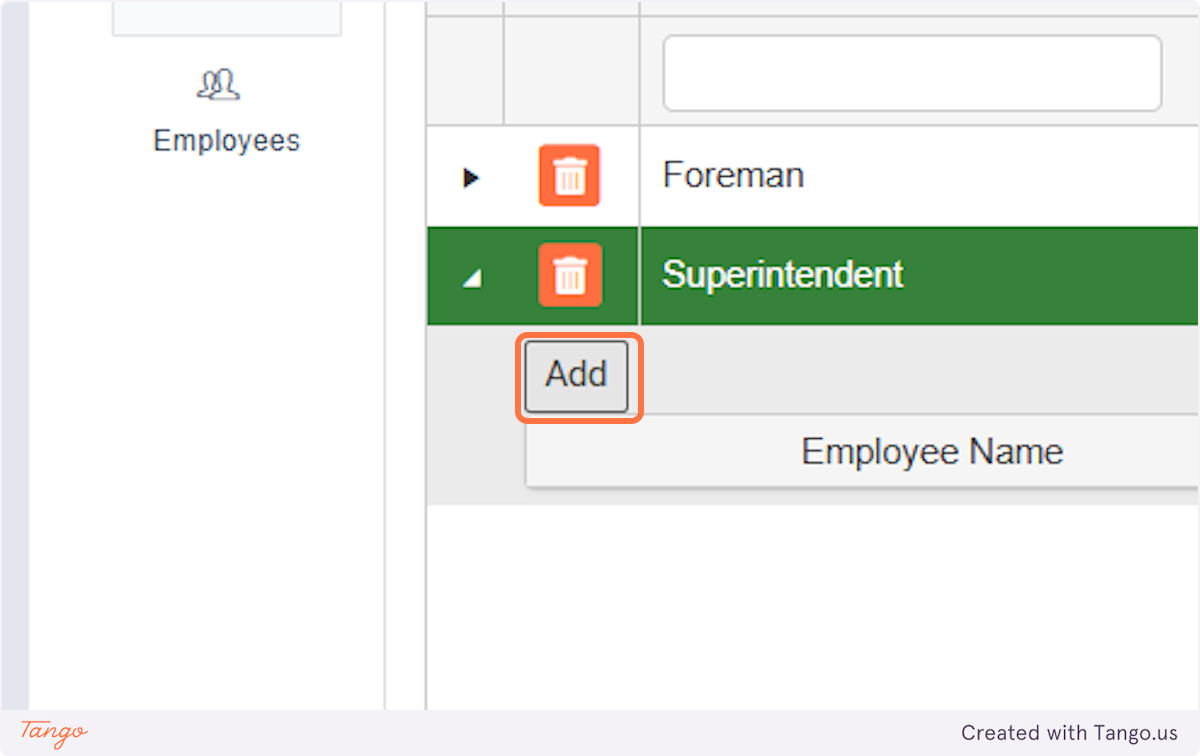
9. Search for applicable employees
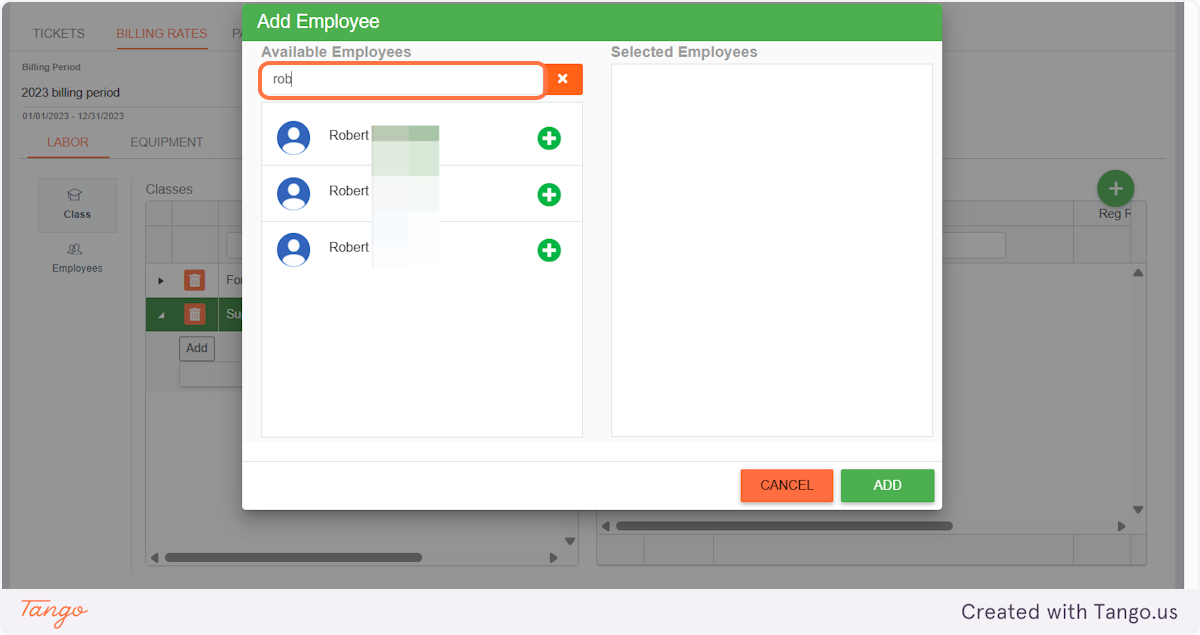
10. Click on Add
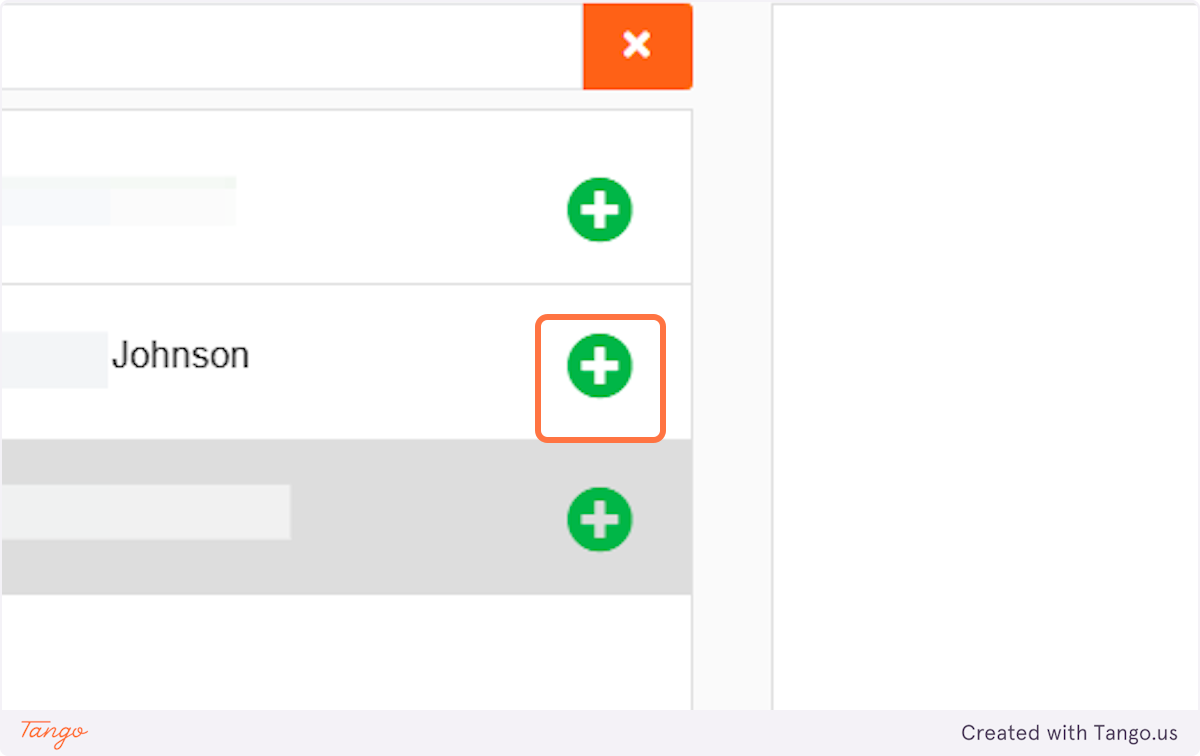
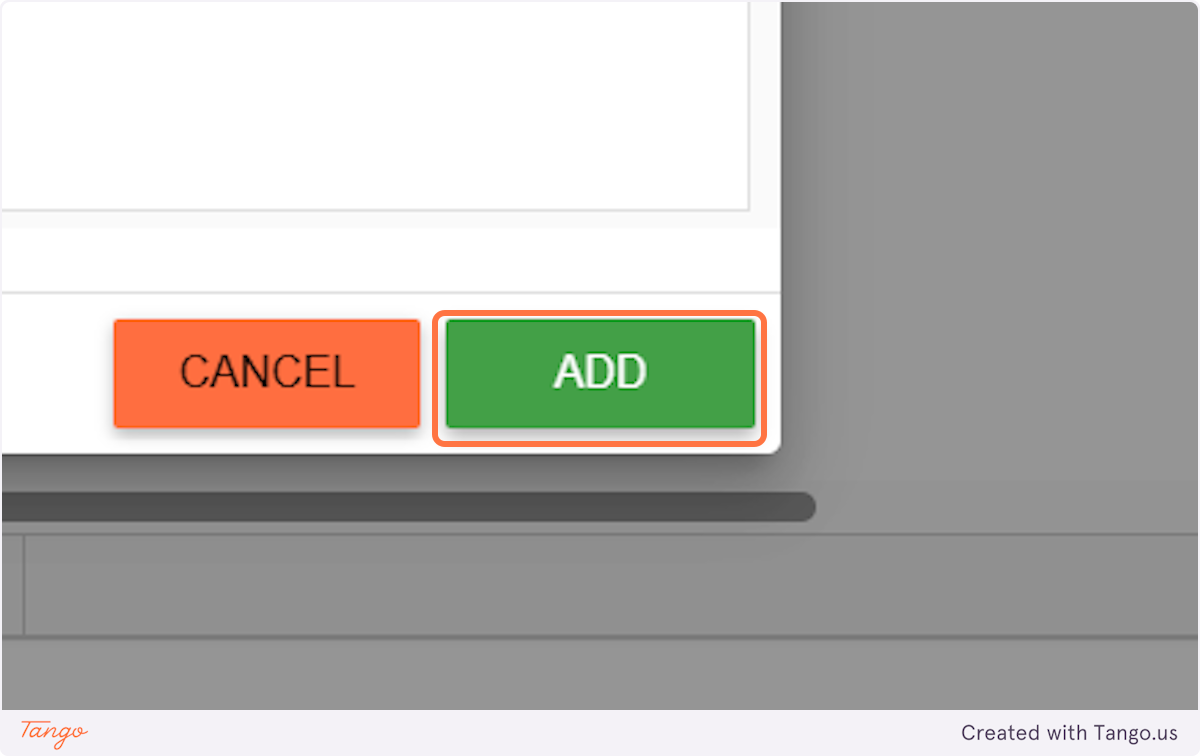
11. Click on ADD
12. Add your rate breakdowns with associated descriptions
Whichever class you have selected is where the breakdown will be added. The Total Rates will update accordingly after saving.
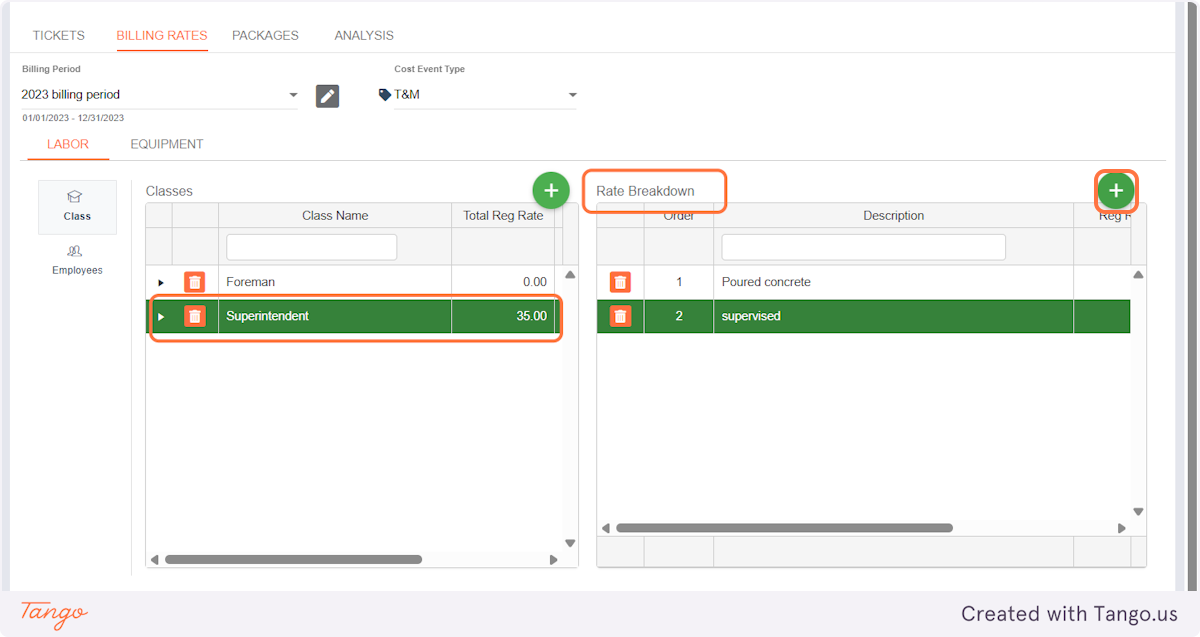
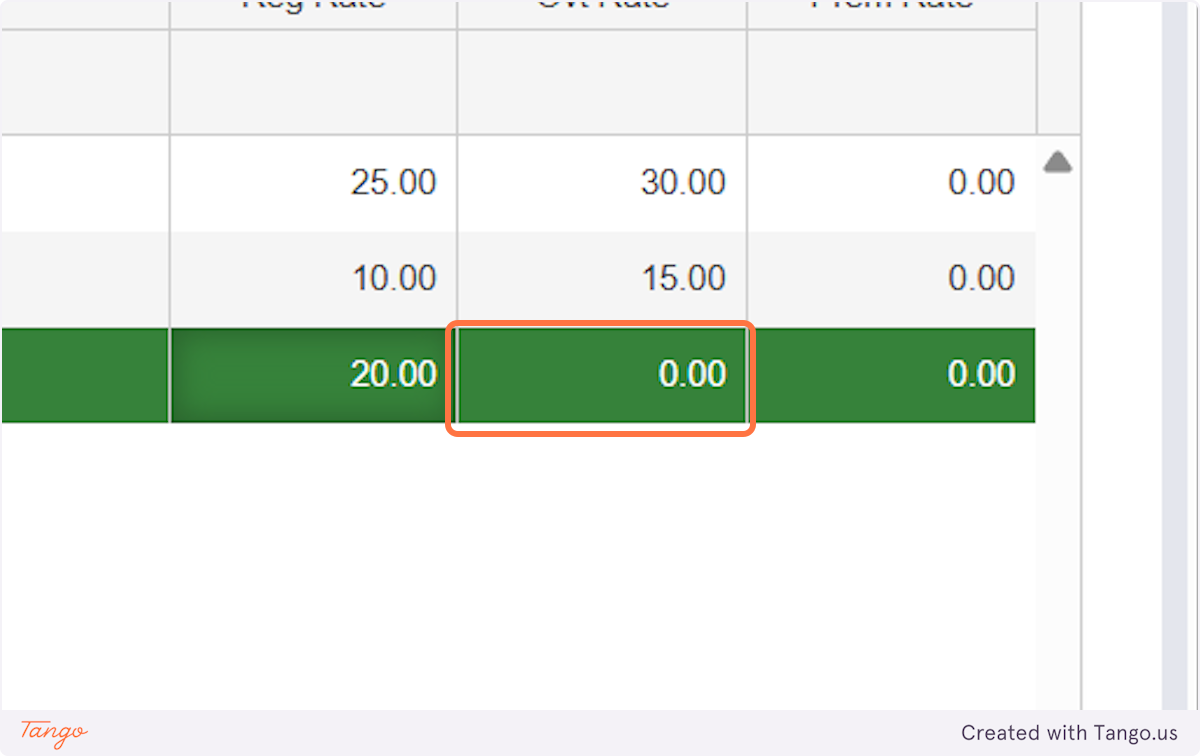
13. Click on "0.00" to update each rate
Important:
Make sure the Cost Event Type in the billing rate table matches the type used in your project’s Cost Event.
Example: If your project uses T&M as the Cost Event type, the billing rate table must also reference T&M. Other types (such as Back Charge or Internal) are also supported but must align correctly.
Start Generating T&M Tickets
Once the project, approvers, cost events, and billing rates are set up, you can begin creating T&M tickets.
Tickets can be generated:
- From time card hours that are linked to a Cost Event, or
- Directly within the Time & Materials module

