


Overview
In Riskcast, Security User Roles and Crew Leads are often confused because they are both tied to users. However, they serve entirely different purposes within the system.
-
User Roles control permissions and system access
-
Crew Leads control timecard ownership and crew structure
Understanding this distinction is critical for proper system configuration and ensuring users can perform their expected tasks.
User Roles (Permissions & Access)
User roles define what a user can see and do in Riskcast.
How They Work
-
Assigned when creating or managing a user
-
Can be applied at:
-
Company Level (default role)
-
Project Level (can override the default role)
-
-
Determine access to:
-
Projects
-
Timecards
-
Reports
-
Administrative functions
-
Key Capabilities Controlled by Roles
-
Create/edit projects
-
Submit or approve timecards
-
View or edit data
-
Access reporting
- Access payroll information, if permission allow user to se payroll tab
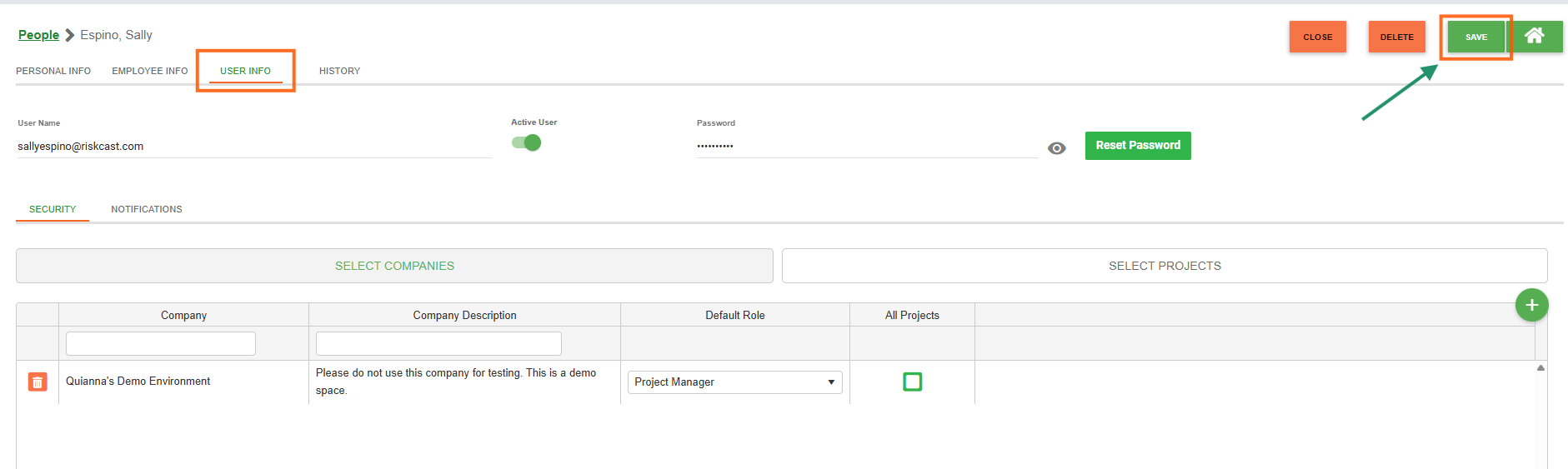
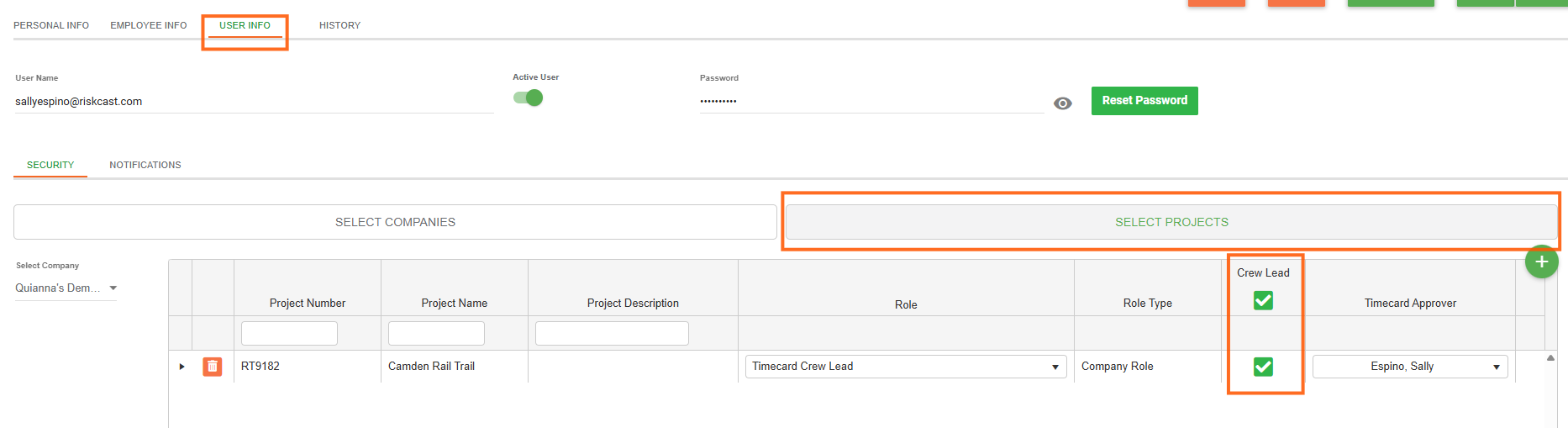
Timecard Crew Lead via User Profile
- This setting determines whether a user will be considered a Crew Lead on a Timecard
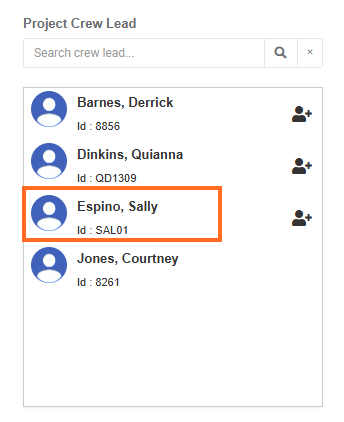
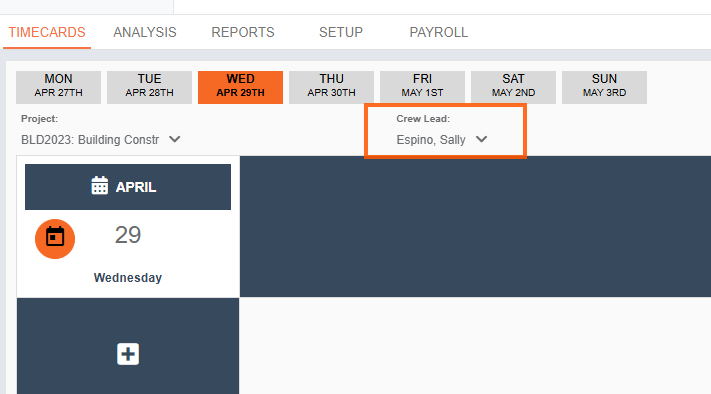
- When configured, as an available option in the Crew Lead dropdown during timecard creation and by default appear in the Project Set Up section.
Crew Leads (Timecards & Crew Management)
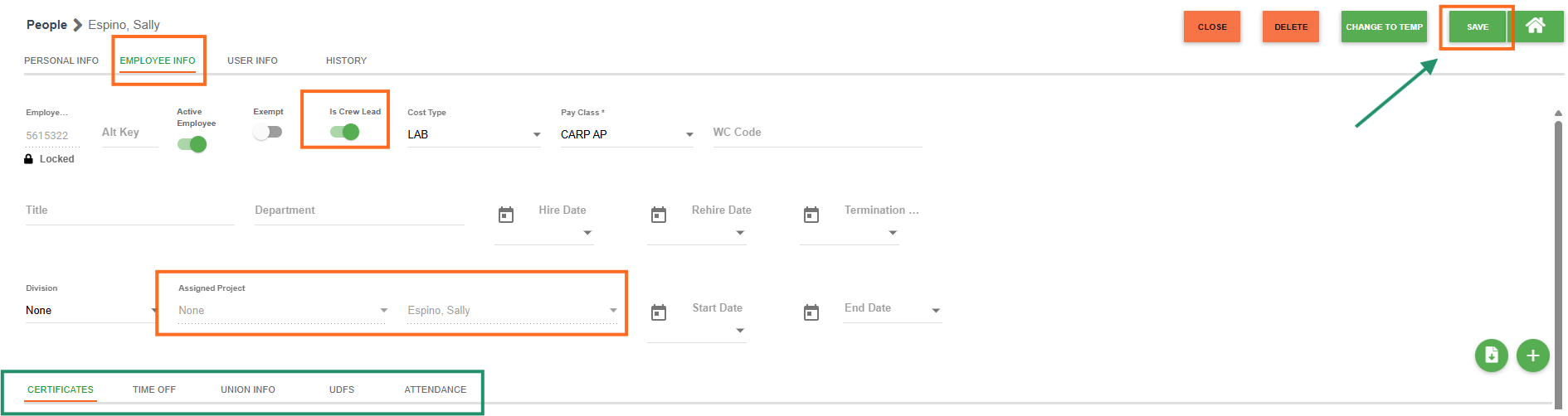
Crew leads determine who is responsible for timecards and how crews are structured.
There are two distinct components:
Is Crew Lead via Employee Profile
- This setting determines whether a user is designated as a Crew Lead for a project, primarily for dispatching and crew assignment purposes.
- This setting does not directly control whether a user can create or submit timecards.
- Timecard access is managed through separate timecard user permissions and project-level configuration settings.
Assigned Crew Lead (Crew Structure)
This defines which employees are assigned to a crew lead.
-
Configured in the employee setup
-
Drives:
-
Crew selection on timecards
-
Dispatching functionality
-
How Payroll Access Works
To access the Payroll screen, a user must:
- Have access to the Payroll tab through their assigned Security User Role
- Have access to projects through timecard or project-level permissions
Once Payroll access is granted, the projects displayed to the user are based on the projects where they already have access permissions. Access restrictions must instead be managed through:
- Security User Roles
- Project-level role assignments
- Timecard permissions
Important Notes
- A user can have the correct role but still be unable to create a timecard unless they are configured as a Timecard Crew Lead on the project.
- A user can be a Crew Lead but still lack permissions if their role does not allow required actions.
- Crew Lead settings are operational and functional only — they do not control system permissions or security access.
- Payroll visibility is controlled through User Roles and project access permissions, not Crew Lead setting
Best Practices
- Configure Roles First
Always assign the appropriate user role before configuring Crew Lead settings. Ensure permissions align with the user’s responsibilities. - Explicitly Enable Timecard Crew Leads
Do not assume a user can create or submit timecards based on their role alone. - Maintain Clear Crew Structures
Use the Assigned Crew Lead field consistently during employee setup. This ensures accurate crew assignment and supports dispatching functionality. - Avoid Overloading Roles for Operational Control
Do not use roles to manage operational behaviors such as Crew Lead assignment. User Roles should define permissions.

