


Weekly Review & Approval of Timecards

Feb 16, 2026
 34
34
Overview
Riskcast’s Weekly Review feature allows payroll or project administrators to review submitted timecards in bulk and approve them for processing. This ensures hours are verified before moving forward in payroll or reporting workflows.
When to Use Weekly Review
Use Weekly Review when you need to: Review multiple submitted timecards at once, confirm hours before payroll processing, and approve timecards in bulk.
Step 1: Open the Tools Menu
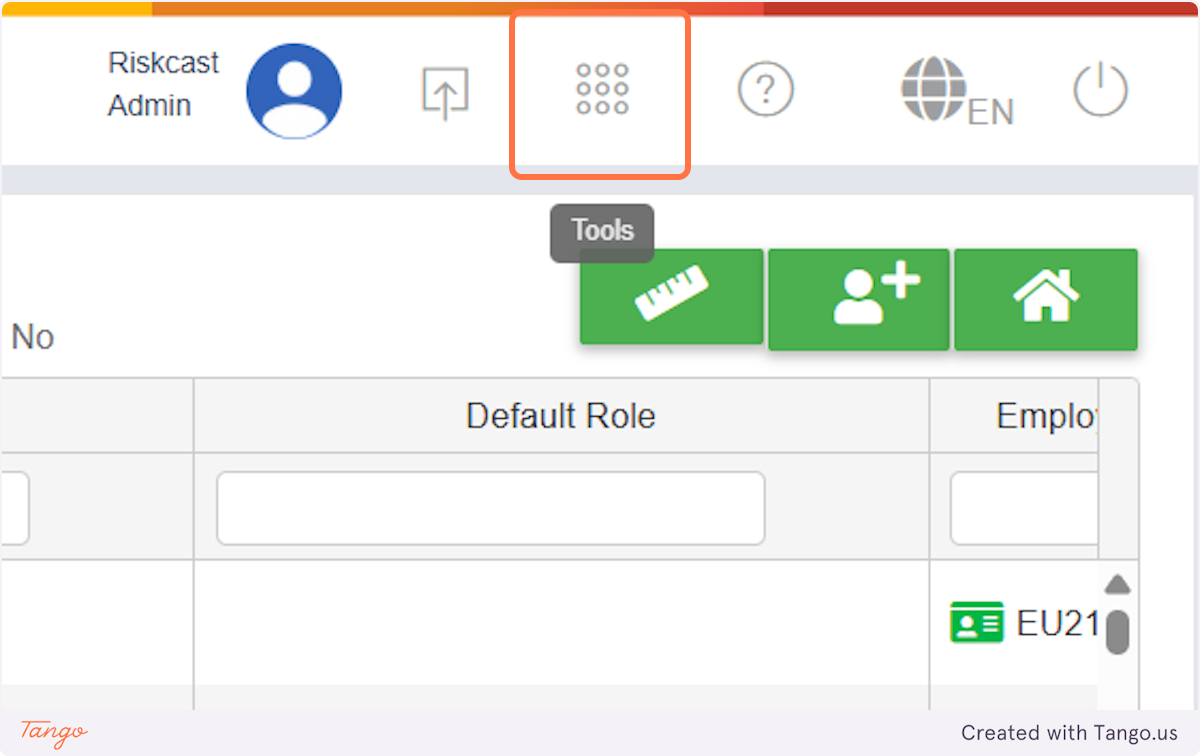
Step 2: Select Timecards from the Tools menu.
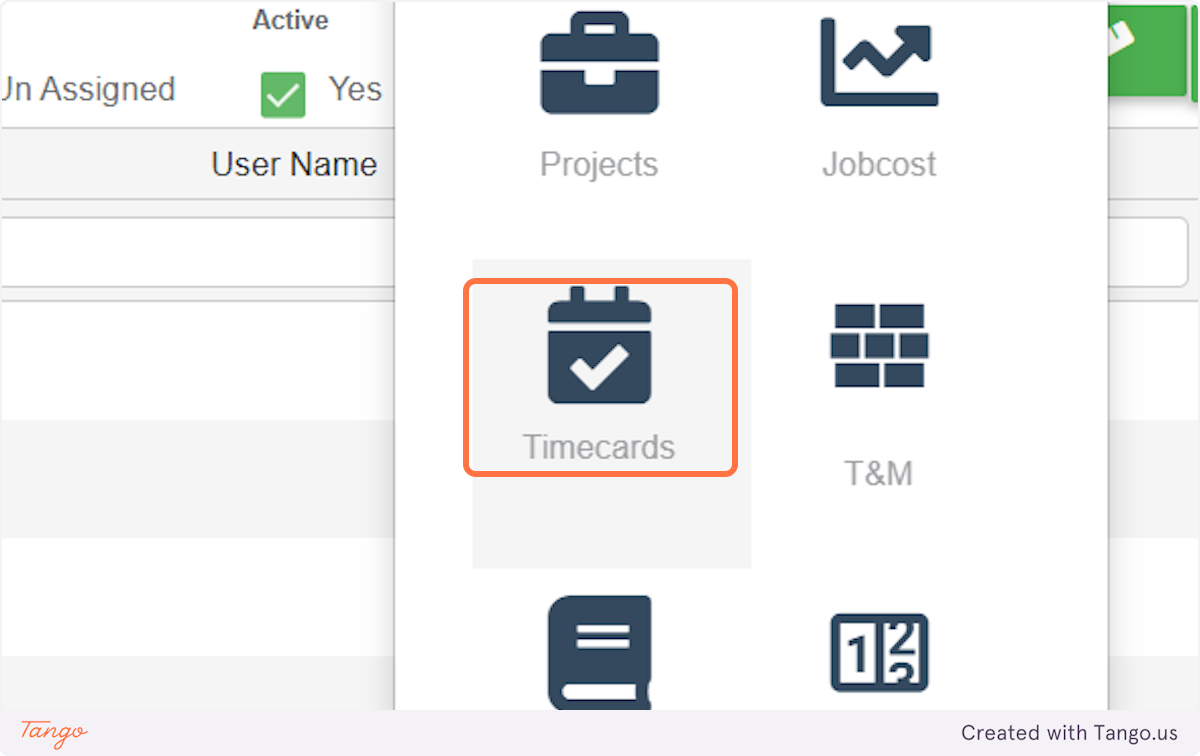
Step 3: Open More Options
In the top-right corner of the Timecards screen, click the three dots menu.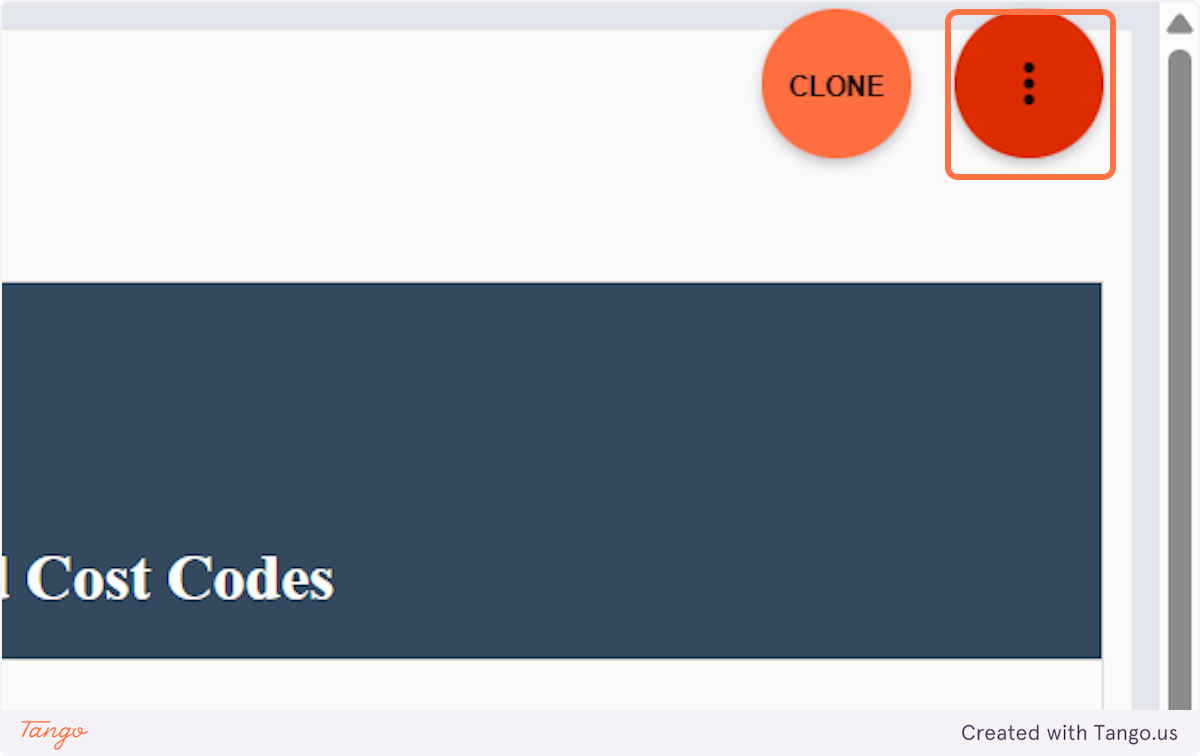
Step 4: Navigate to Payroll
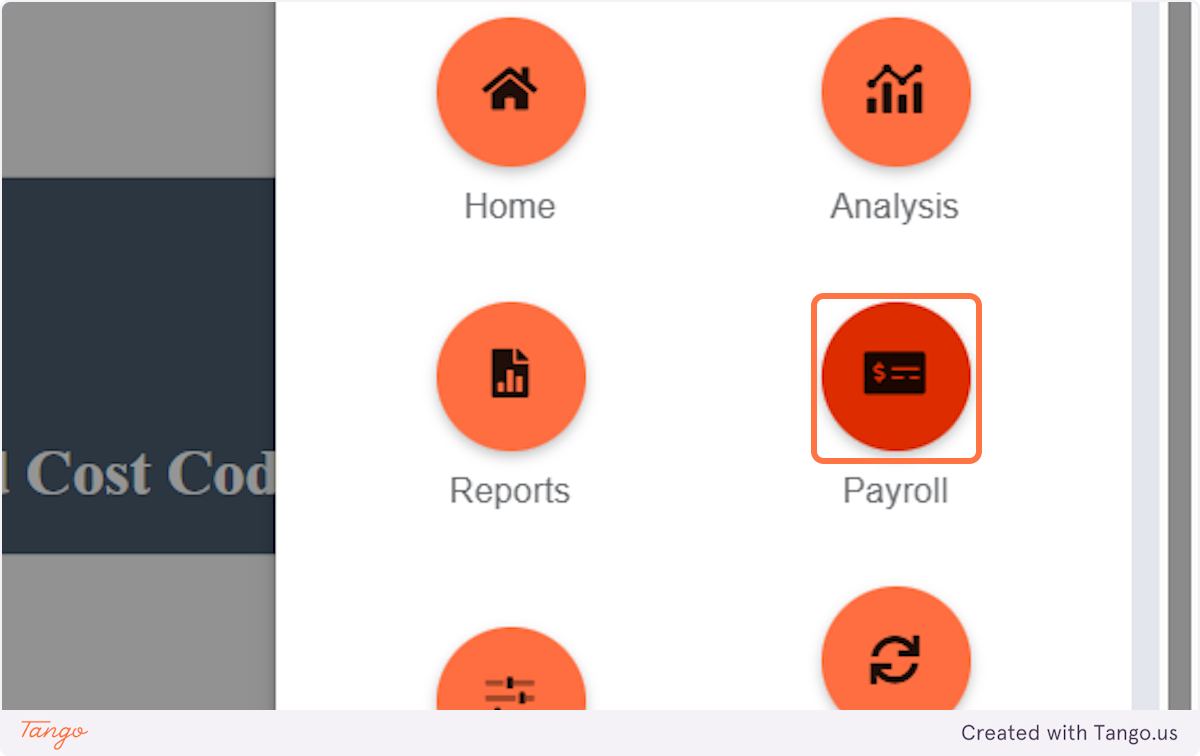
Step 5: Click on Weekly Review to access the bulk review screen.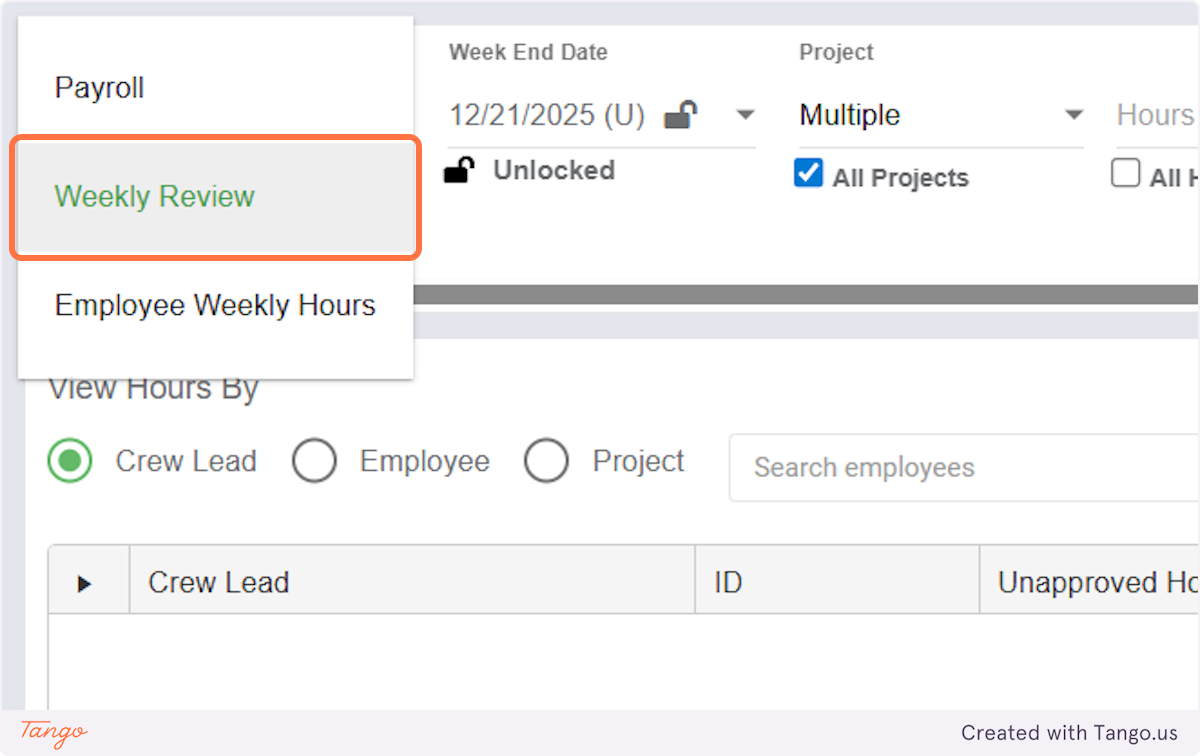
Step 6: Apply Filters Use filters as needed to narrow down the list of timecards (for example, by project, date range, or status).
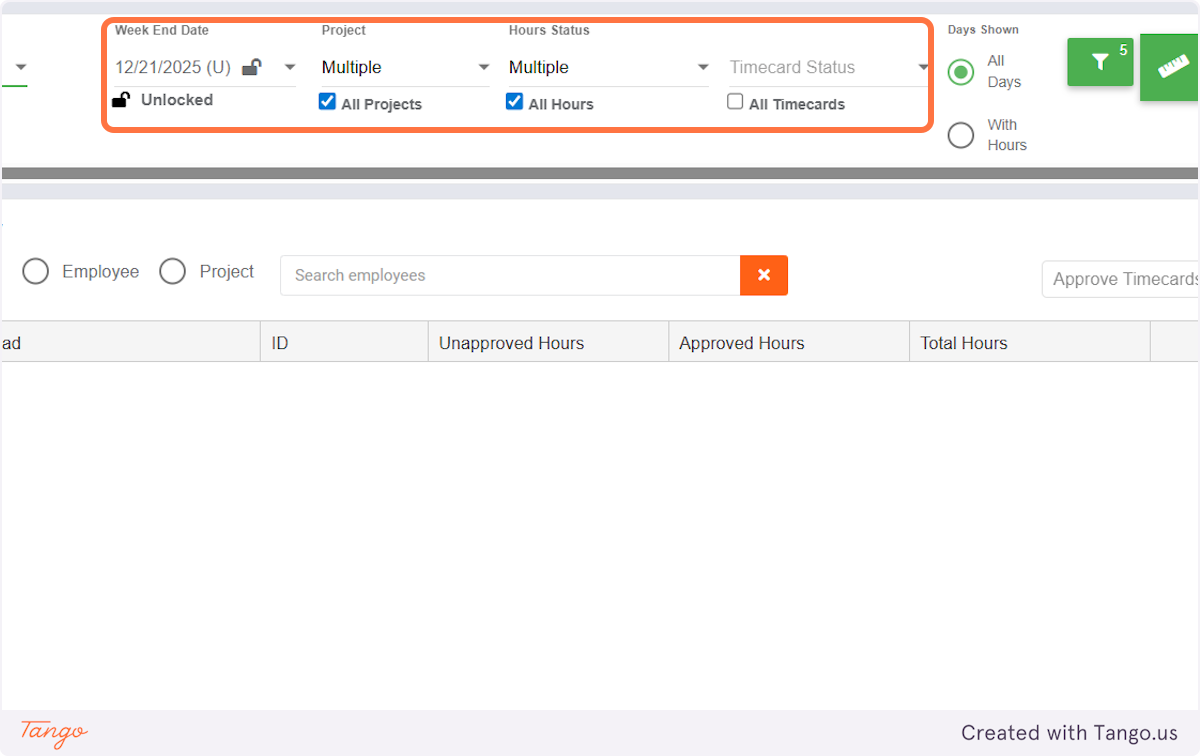
Step 8: Review and Select Timecards Review the hours and details, then select the timecards you want to approve.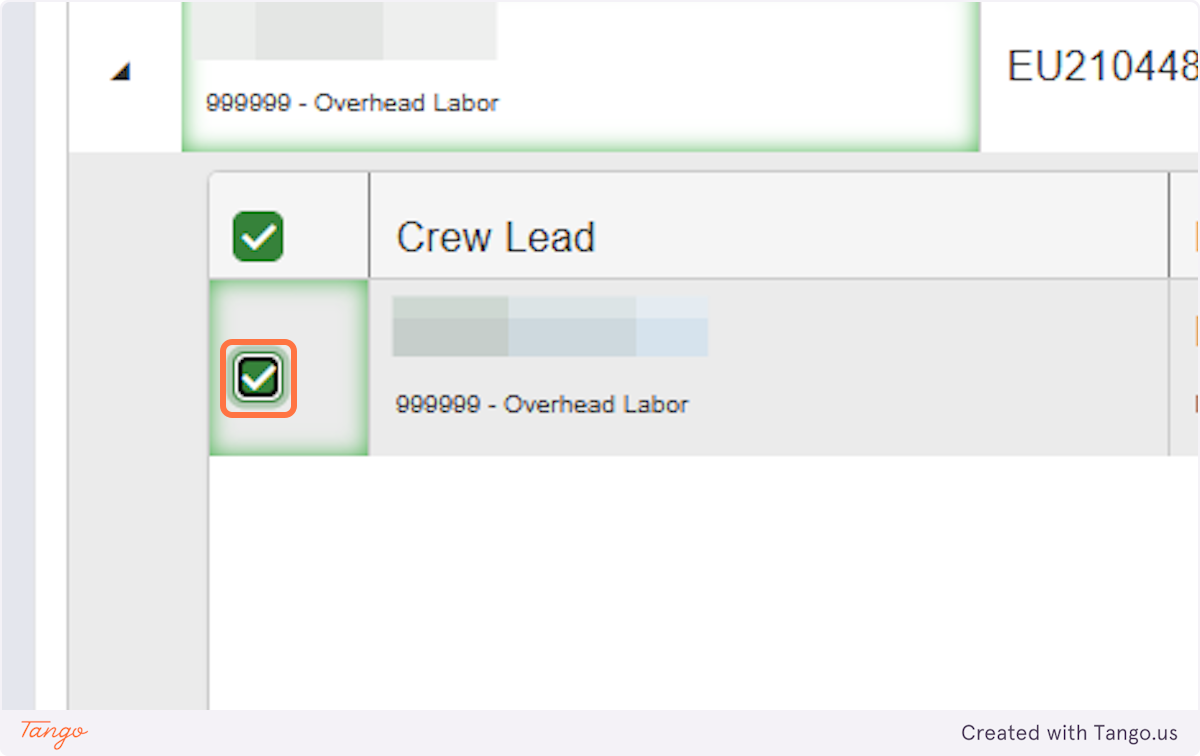
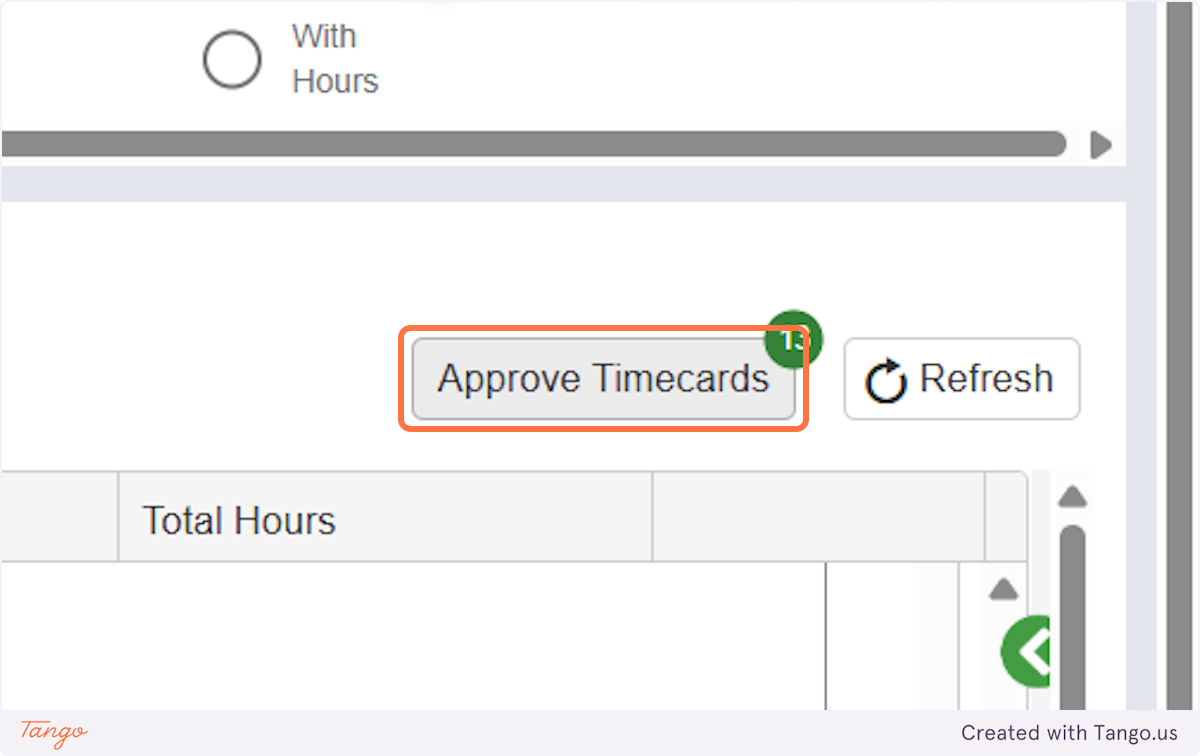
Step 9: Click Approve Timecards to finalize approval
What Happens After Approval?
Once approved:
- Timecards move out of Submitted status
- They are ready for payroll processing or downstream reporting
- Edits may be restricted depending on your company’s permissions and workflow settings

