


 35
35
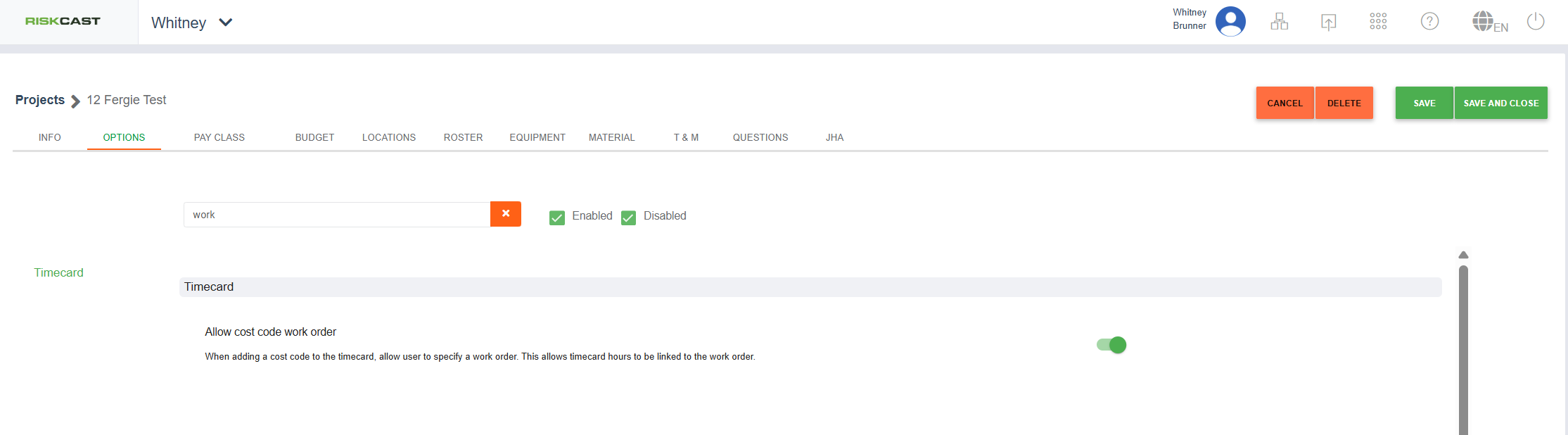
Riskcast allows projects to select whether they want to enable the ability to use Work Orders. Within the Project module, within each project options screen, toggle ON the "Allow cost code work order" option.
Once the work orders is enabled for at least one project, it will be visible within the Job Cost section. Click on the "Work Order" tab within the "Cost" section of Job Cost.
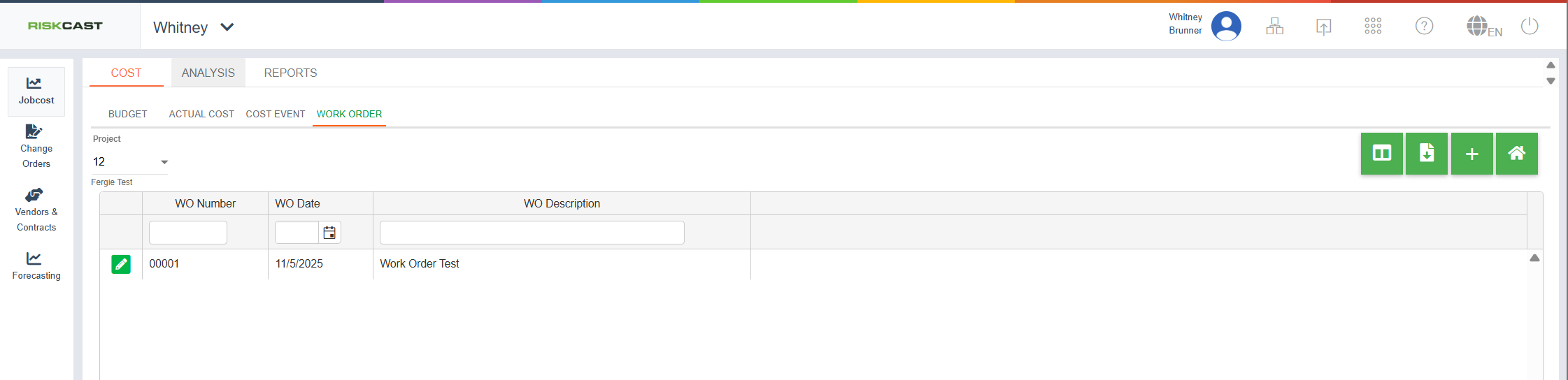
Click the "+" button to add a new work order. The option will exist to clone an existing work order or to add a new one.
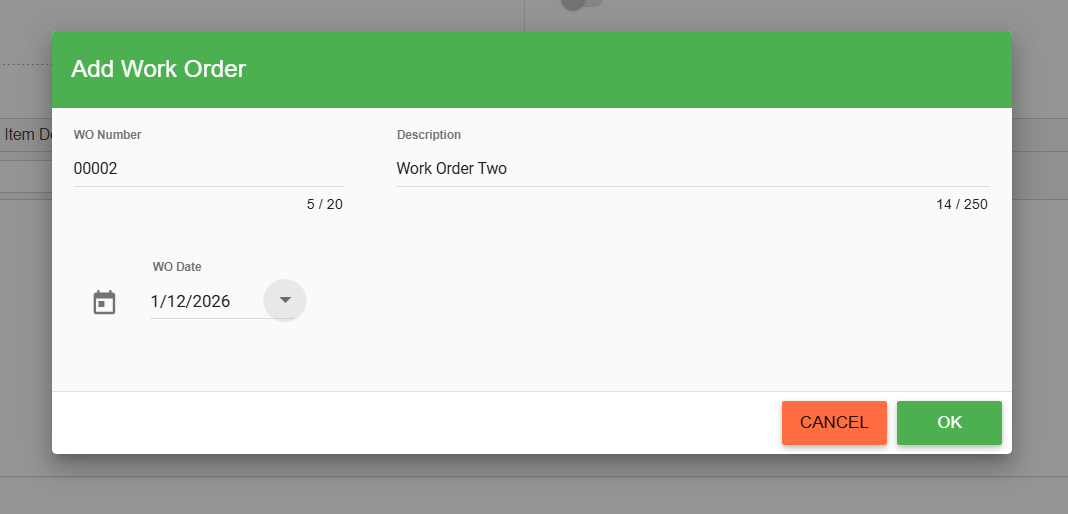
When adding a new work order, the WO number will automatically generate sequentially. It can be changed if needed. The user needs to enter a WO Date and Description before clicking OK.
Once the work order is created, a user can add individual items to the work order. A user can also define with the "Available on Timecards" toggle, if a user can see this work order on a timecard.
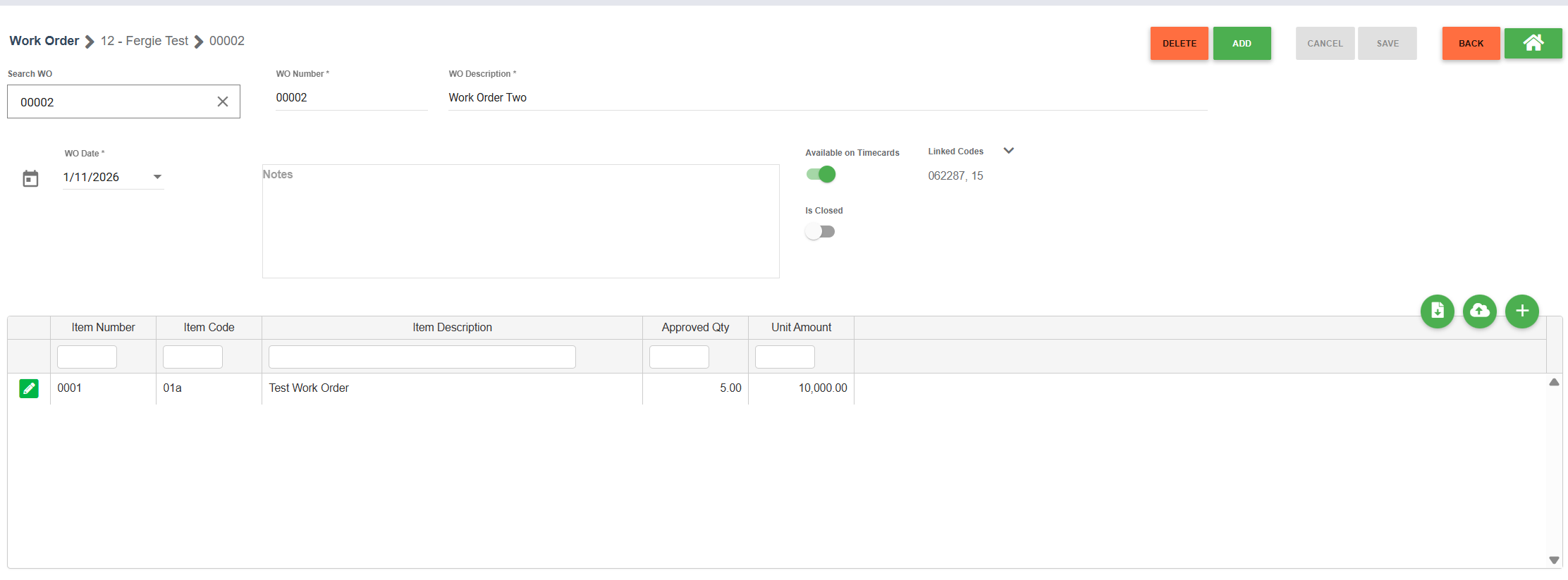
If "Linked Codes" are selected, time against those codes will automatically be associated with this work order. A cost code can only be associated with one work order at a time.
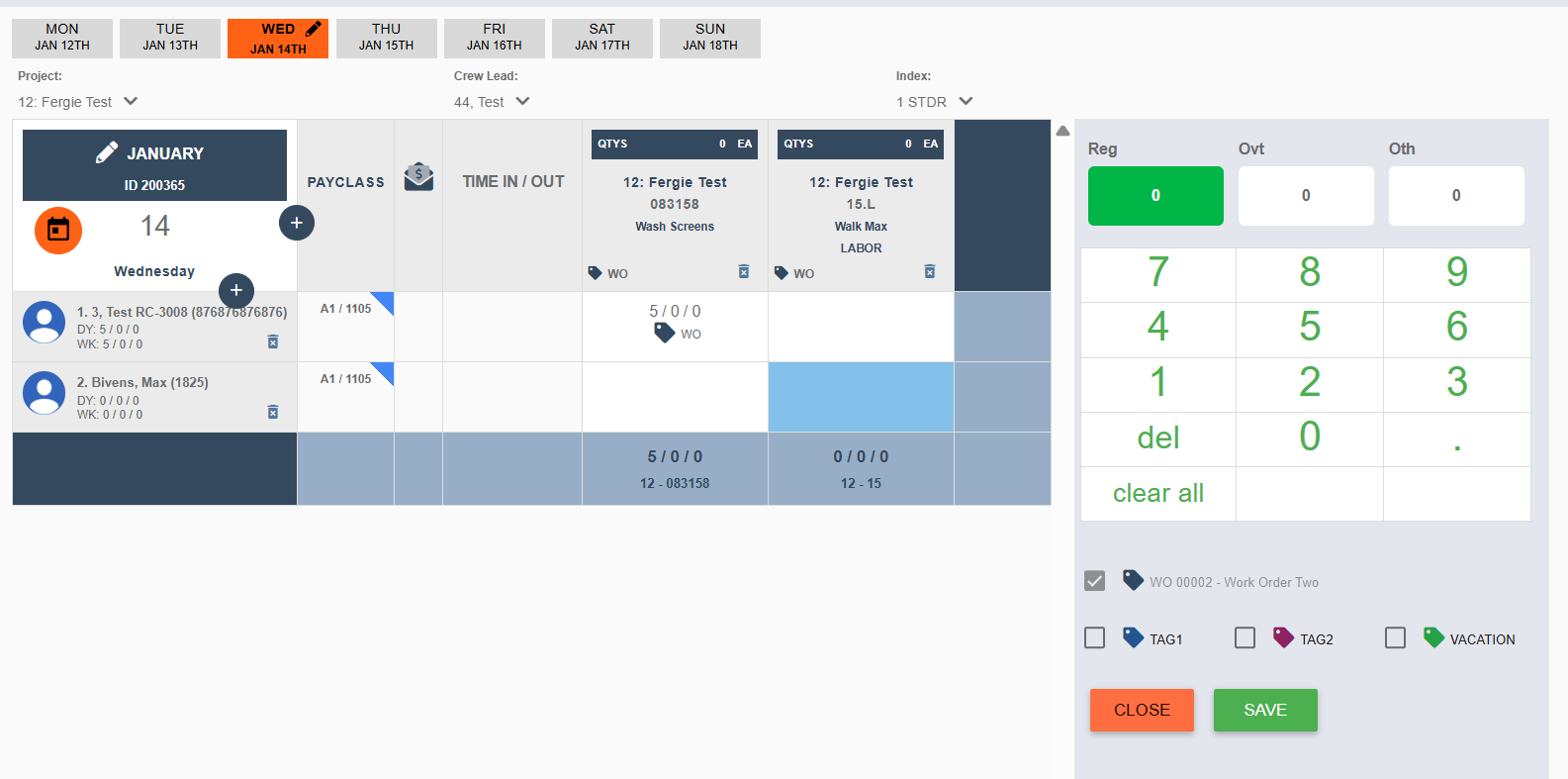
If the work order "available on timecards" but is not associated with one or more cost codes, then when a cost code is selected on the time card, the work order can be selected just like a normal tag.
To see what has been charged against a work order, navigate to the Payroll Details section of the Timecard Module/Analysis tab. The "Hrs Type" will be "Work Order" and the "Cost Events" will note that its a work order and the "CE:000xx" is actually the number of the work order.

Notes:
1. Currently, there is no way to charge against the different line items of the work order.
2. Once a work order is "complete" it should be toggled to "Closed" and toggle to "not available on timecards".
3. There is no report within the Job Cost module allowing a user to easily see how much has been "charged" to a work order.

