Creating Crews
Last updated: Jul 23, 2026
299
views

This article outlines the steps for creating a Crew in Riskcast. This includes setting a Crew Lead and assigning Employees and Equipment to that designated Crew Lead.
*If you would like to assign a user as a Crew Lead to a specific project, please see the Assigning Crew Leads article.
- Designate a Crew Lead for the Crew
- Navigate to the People section of the Organization menu.
- Find the person who will be the Crew Lead of this Crew and click the Edit
 icon next to their name.
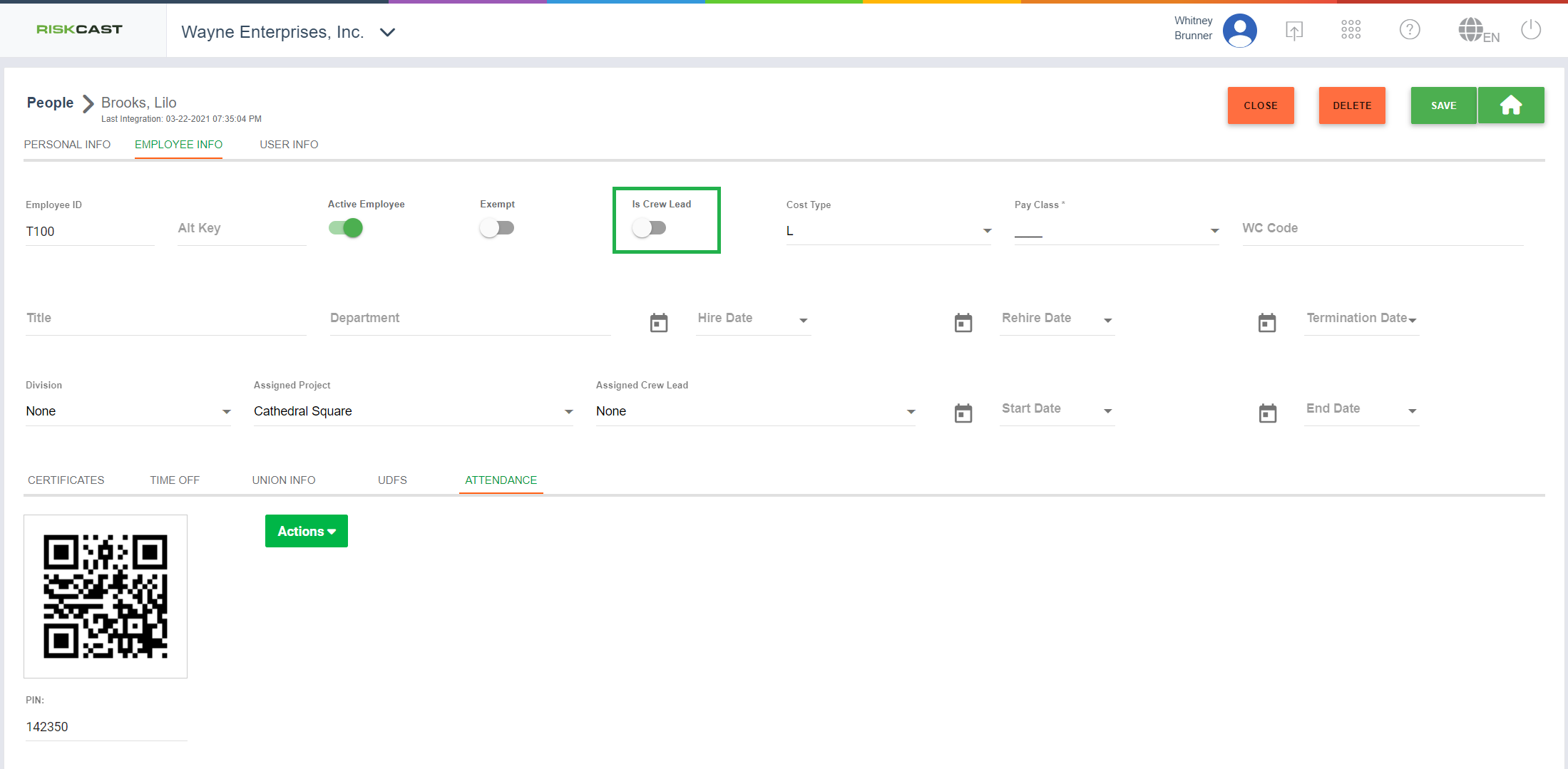
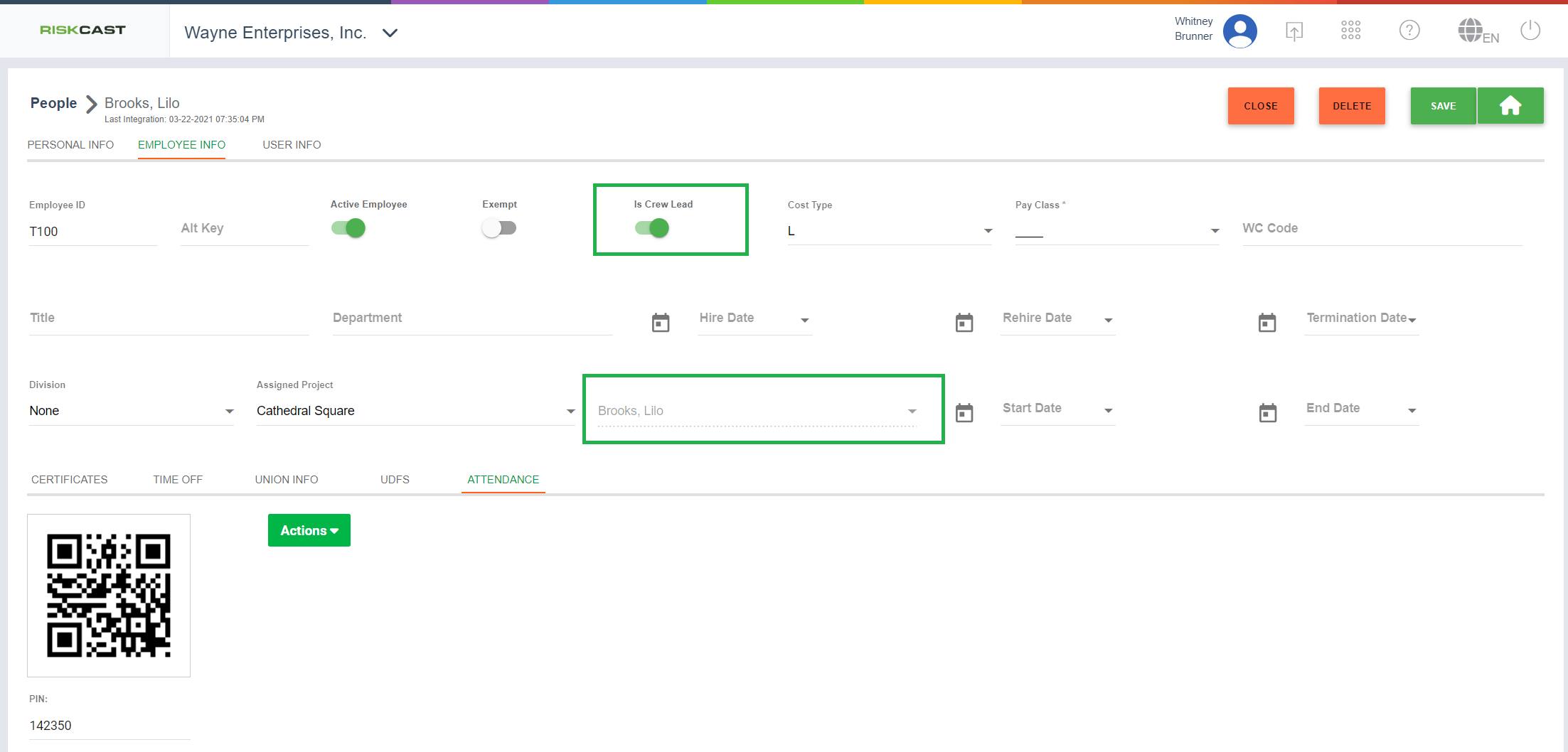
 - On the Employee Info tab of their record, toggle the Is Crew Lead option to ON. *When toggled on, the Assigned Crew Lead field will populate the employee's own name and become read only.
- Click the Save button before navigating away from this screen to ensure you the settings are saved.
- Assign Employees to the Crew
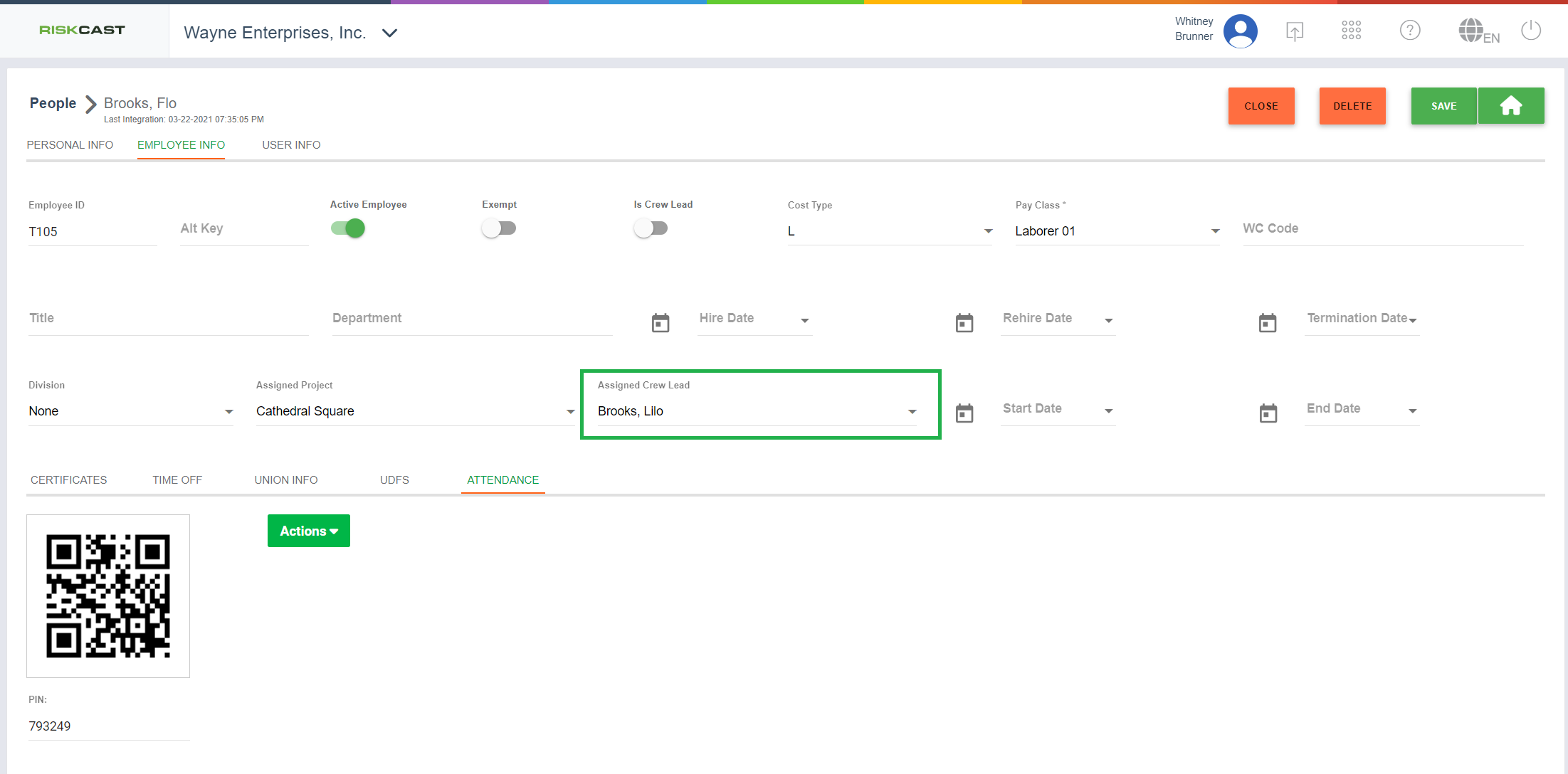
- Navigate to an employee record who you would like to assign to the Crew.
- In the Assigned Crew Lead field, select the Crew Lead to assign this employee to. Repeat this step for any additional employees you want to assign to this Crew.
- Assign Equipment to the Crew (Optional)
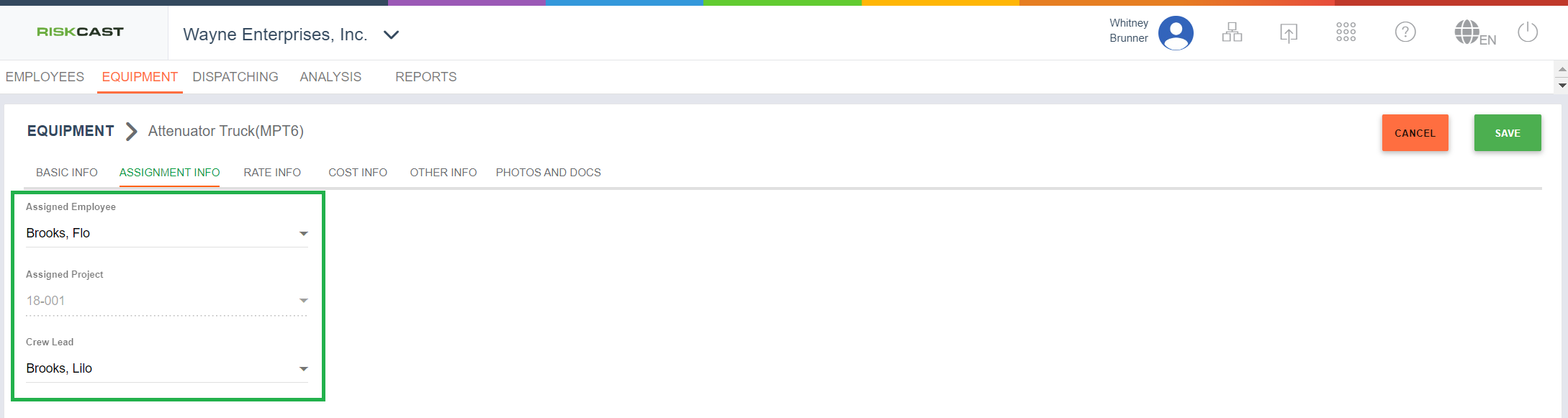
- Navigate to the Equipment tab of the People & Equipment module
- Click the Edit icon for the equipment and select the Assignment Tab.
- Set the Assigned Employee, Assigned Project, and Crew Lead options as needed, keeping in mind the relationships listed below.
- The Assigned Employee can be any person within the crew. It does not need to be the same person as the Crew Lead.
- If the Assigned Employee has a current project or crew lead assignment, those fields will auto-populate with that assignment.