79
79
If a project is handling the job cost true up process manually each week (or as needed), follow the steps below:
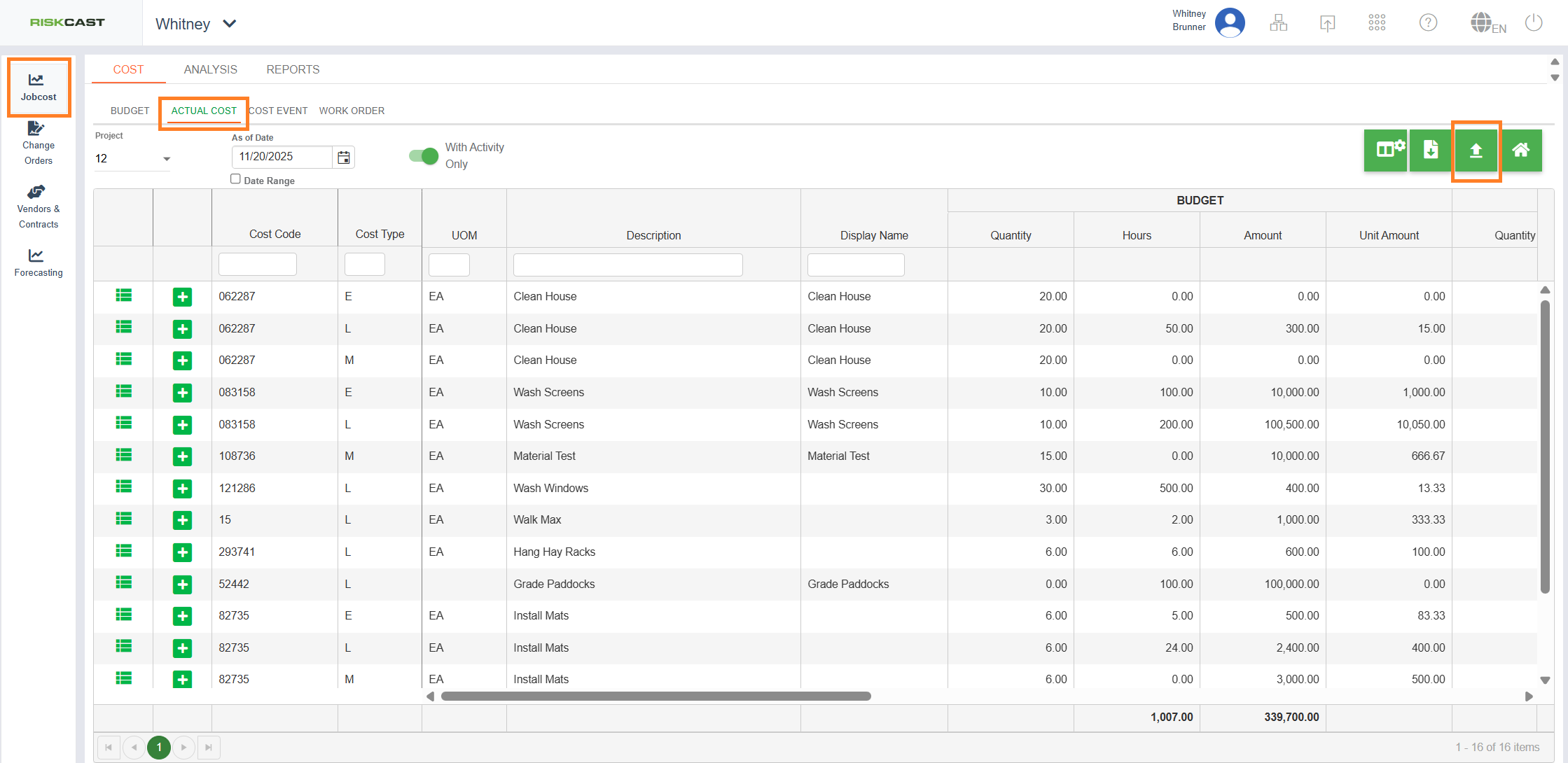
1. Navigate to the Job Cost module.
2. Navigate to the Actual Cost tab.
3. Select the project for which a true up needs to be processed.
To Date True Up Process:
4. Click the upload button in the top right corner of the grid.
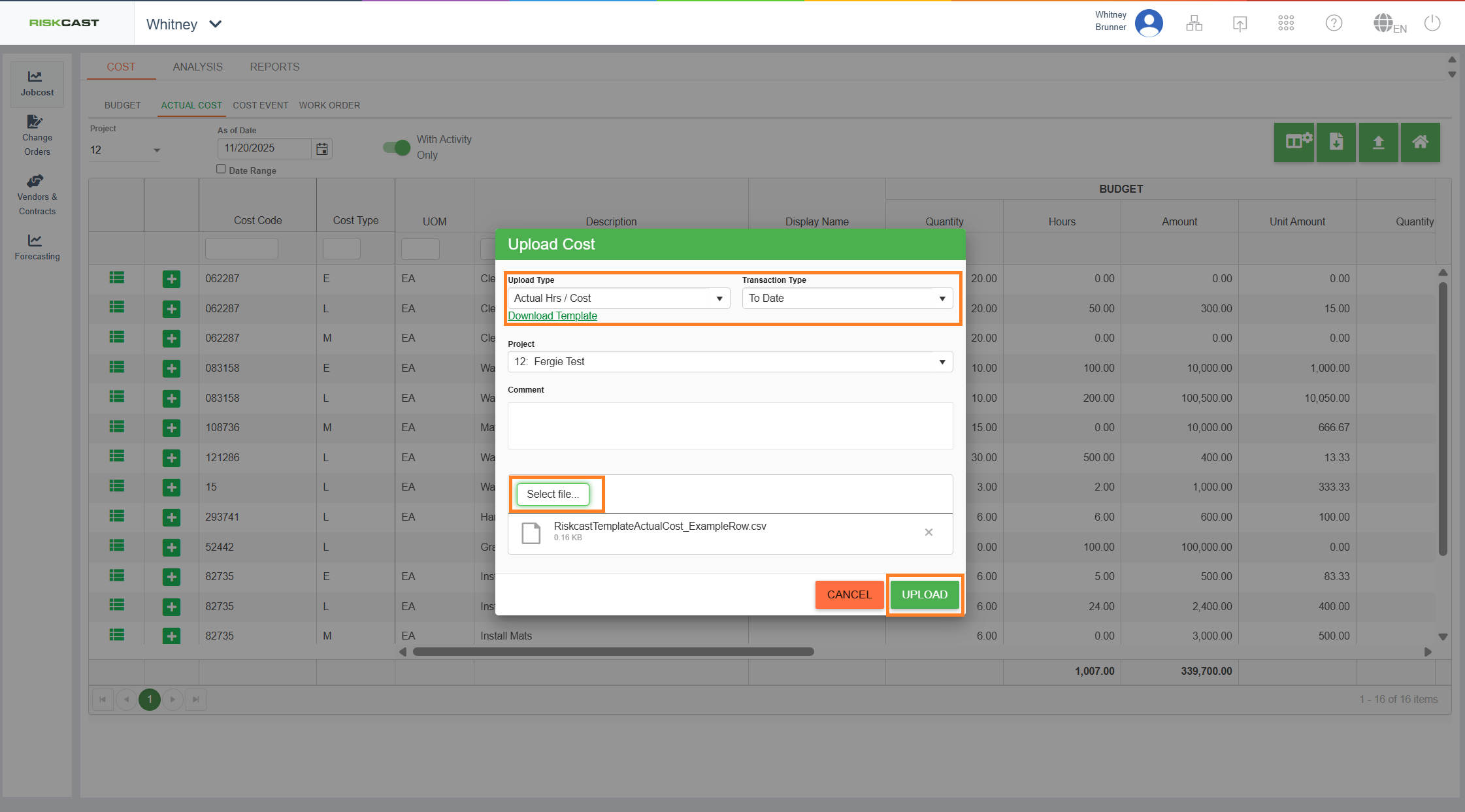
5. A new window will appear. Select which type of true up needs to be completed. Acutal Qty or Actual Cost/Hours. For this example, we selected Actual Cost/Hours.
6. First, download the template. Make sure this template (for the specified Upload Type) is used to enter the true up data into as this template will need to be uploaded into the system. Select the "To Date" option.
TEMPLATE NOTES:
- The "date" in the template will be the date of the transaction within the Riskcast System.
- If a cost code has a leading zero, ensure to put a ' in front of it so that it stays a 0. Otherwise that record will not be processed.
- The note will carry over in the notes field into the actual cost view.
- The reference key can be left blank as it will be filled in with the ID of the actual file that is uploaded. It can be filled in if desired with information pertaining to the reason for the true up. It will show up in the "Reference" area of the actual cost view.
7. Once the template is downloaded and filled in, attach the template and click the upload button. Once the file has completed processing, the window will close.
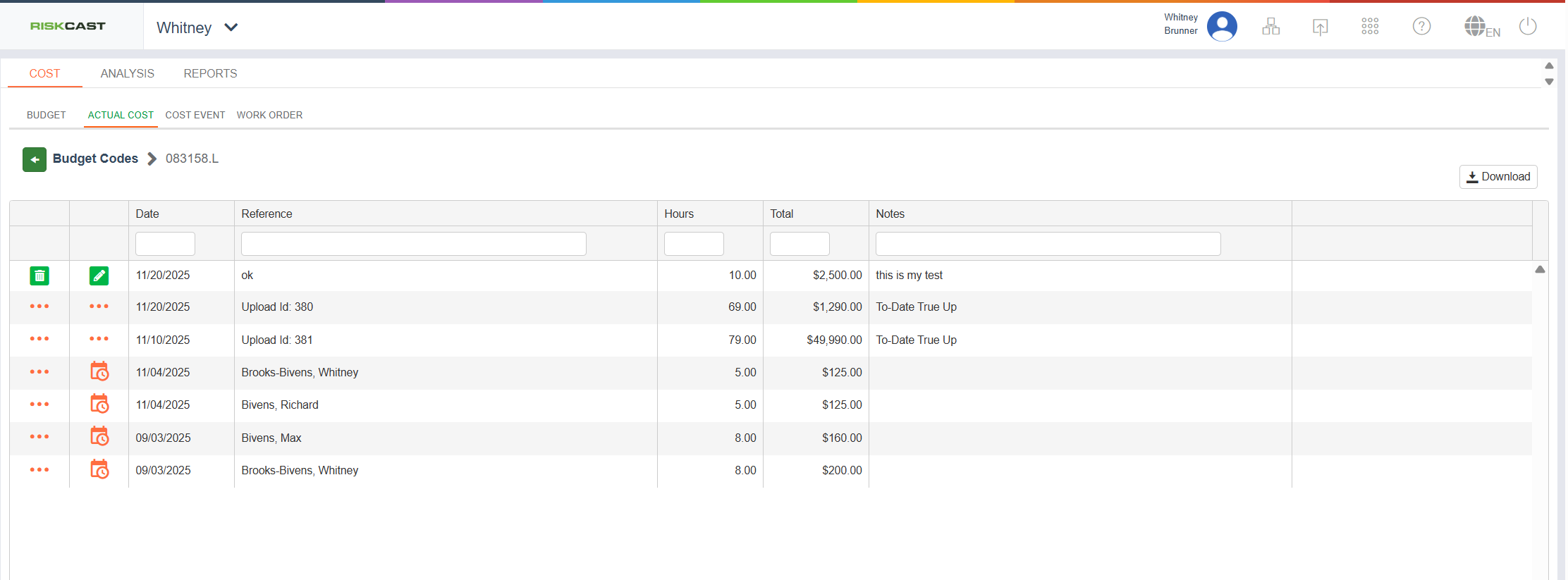
8. To see the adjustment, click the details button to the left of a specific Cost Code/Cost Type.
9. Each record related to an actual cost for that Cost Code/Cost Type will be listed including true up adjustments and timecard entries. "To Date True Up" will be visible in the notes section to be able to identify a true up.