


Project Configuration Options

Apr 29, 2026
 21
21
Overview
The Project Options section controls how key features behave within a project. These settings determine what functionality is available for budgeting, timecards, T&M, payroll, quantities, safety (JHA), and attendance. Each section can be enabled or configured based on project needs. Project Options are grouped into functional categories that control how data is entered, tracked, and reported within a project.
These settings impact workflows such as:
- Cost tracking and budgeting
- Timecard and payroll processing
- T&M ticketing and billing
- Quantity tracking and production reporting
- Safety documentation (JHA)
- Attendance and kiosk behavior
To update and configure your Project Options take the following steps:
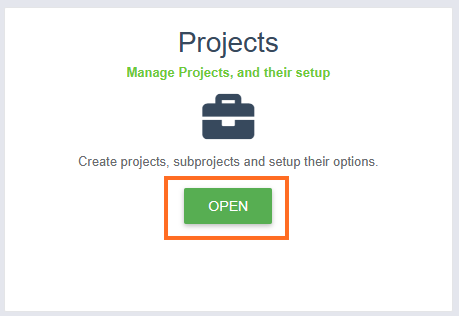
1. Navigate to the Projects module
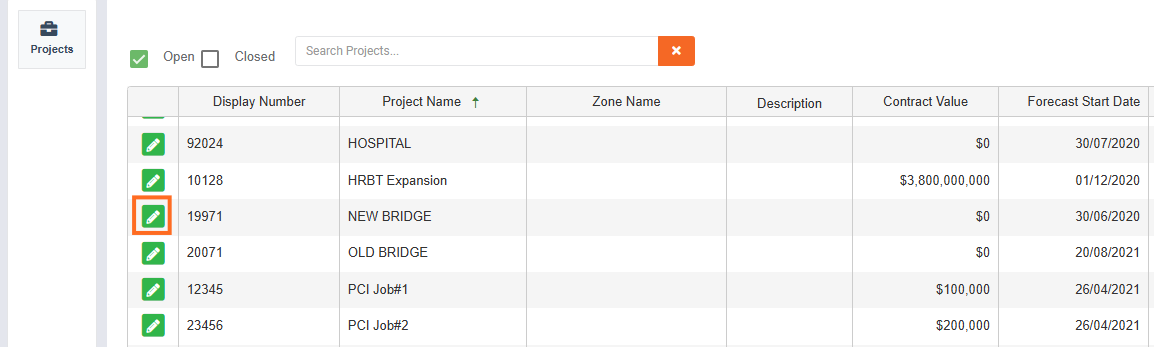
2. Click Edit on the Project you want to configure
3. Configure options AND Save
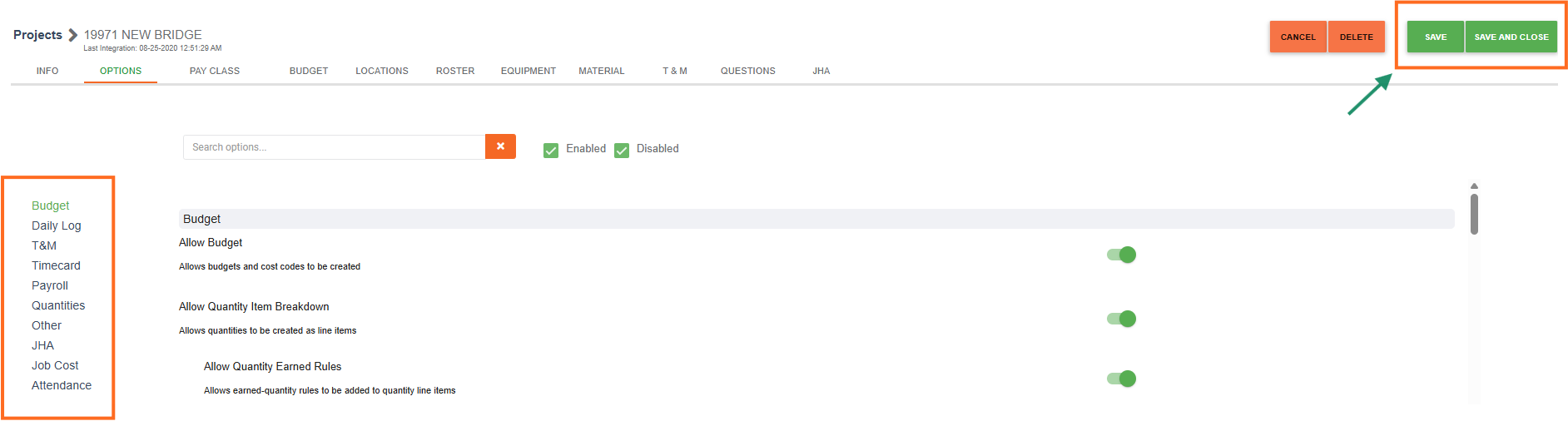
The sections below explain each option and how it influences the user experience.
Budget
- Allow Budget – Enables budgets and cost codes
- Allow Quantity Breakdown – Enables quantity line items
- Allow Quantity Earned Rules – Adds earned-quantity rules (requires breakdown)
- Allow Quantity Labor Hours – Allows labor hours at quantity level (requires breakdown)
- Allow Currency Amount – Allows dollar values at quantity level (requires breakdown)
- Require Budget Template for Cost Code Upload – Requires template when uploading cost codes
Daily Log
- Auto-load daily weather data – Automatically pulls daily weather information into the project
T&M
- Enable T&M – Activates T&M functionality
- Allow Edit of Timecard Hours – Allows edits on T&M ticket hours
- Use Payclasses for Billing Tables – Generates billing classes from payclasses
- Allow Timecard Payclass Sync – Syncs billing class when payclass changes
- Allow Billings from Ticket – Enables printable billable T&M tickets
- T&M Report Template – Select report format
Timecard
General Settings
- Custom employer companies
- Company dropdown selection
- Multi-project timecards
- Shifts
- Company equipment
- Summary hours display
- Edit payclass
- Allow allowances (company/custom)
Attachments & Reporting
- Document attachments (enable/require)
- Timecard email notifications
- Attached report selection
Productivity & Quantities
- Productivity columns (Hours/Unit, Unit/Hours, Unit Cost)
- Quantity entry on timecards
- Track employee quantities
- Require quantity entry
Time Entry Rules
- Start/end time entry (optional/required)
- Employee clock-in (manual or punched)
- Break tracking
- Repeat cost codes
- Multi timecards per Crew Lead per day
Additional Features
- Signatures
- Timecard questions
- Crew notes (optional/required)
- Productivity notes
- Cost code work order linking
- Cost code location tracking
- Billing groups
Payroll
- Define Payroll Week Ending Date – Company default or custom setting
Quantities
- Allow to-date quantity to exceed forecasted quantity
Options:- Not Allowed
- Allowed on all codes
- Allowed on selected line items
Other
- Automatically give access to sub-projects – Grants access automatically to related sub-projects
JHA (Job Hazard Analysis)
(Visible only if enabled in tenant)
- Enable JHA from Timecard
- Require JHA Awareness Form
- Display safety message during JHA creation
- JHA Report Template selection
Attendance
(Visible only if enabled in tenant)
- Enable employee photos (company or custom)
- Require photo for check-in/out
- Custom kiosk message
Best Practices
- Enable only what is needed per project
Avoid activating unused settings to keep workflows simple and reduce user confusion. - Standardize configurations across similar projects
Use consistent settings for similar project types to ensure predictable behavior and reporting. - Review dependencies before enabling features
Some options require others to be enabled first (e.g., Quantity Earned Rules requires Quantity Breakdown). - Align settings with operational workflows
Configure timecards, T&M, and payroll settings based on how crews actually perform work in the field. - Test changes before rolling out broadly
Apply updates in a test project before enabling across multiple active jobs. - Document project-specific configurations
Keep internal notes on why certain options were enabled for future reference or troubleshooting.

