


 281
281
Overview
Riskcast provides the ability to configure questions and signatures within timecards, daily logs, and attendance workflows. This feature enables teams to capture critical jobsite information related to compliance, safety, and daily operations.
By leveraging questions and employee signatures, organizations can:
-
Improve data accuracy from the field
-
Ensure compliance documentation is consistently captured
-
Validate time entries with employee acknowledgment
Supported Question Types
Riskcast supports four types of questions, each tied to a specific workflow:
-
Daily Log
-
Accessible only within the Daily Log tab
-
Ideal for capturing site conditions, incidents, or daily summaries
-
-
Time Card
-
Completed at the timecard level
-
Typically answered by a Crew Lead or Supervisor
-
-
Time Card Employee
-
Completed for each individual employee on the timecard
-
Useful for collecting worker-specific responses
-
-
Attendance (Check-In/Check-Out)
-
Displayed in the attendance app during clock-in or clock-out
-
Ideal for real-time compliance and safety confirmations
-
How to Set Up Questions & Signatures
-
Navigate to the Projects Module
-
Select the desired Project
-
Open the Options Tab
-
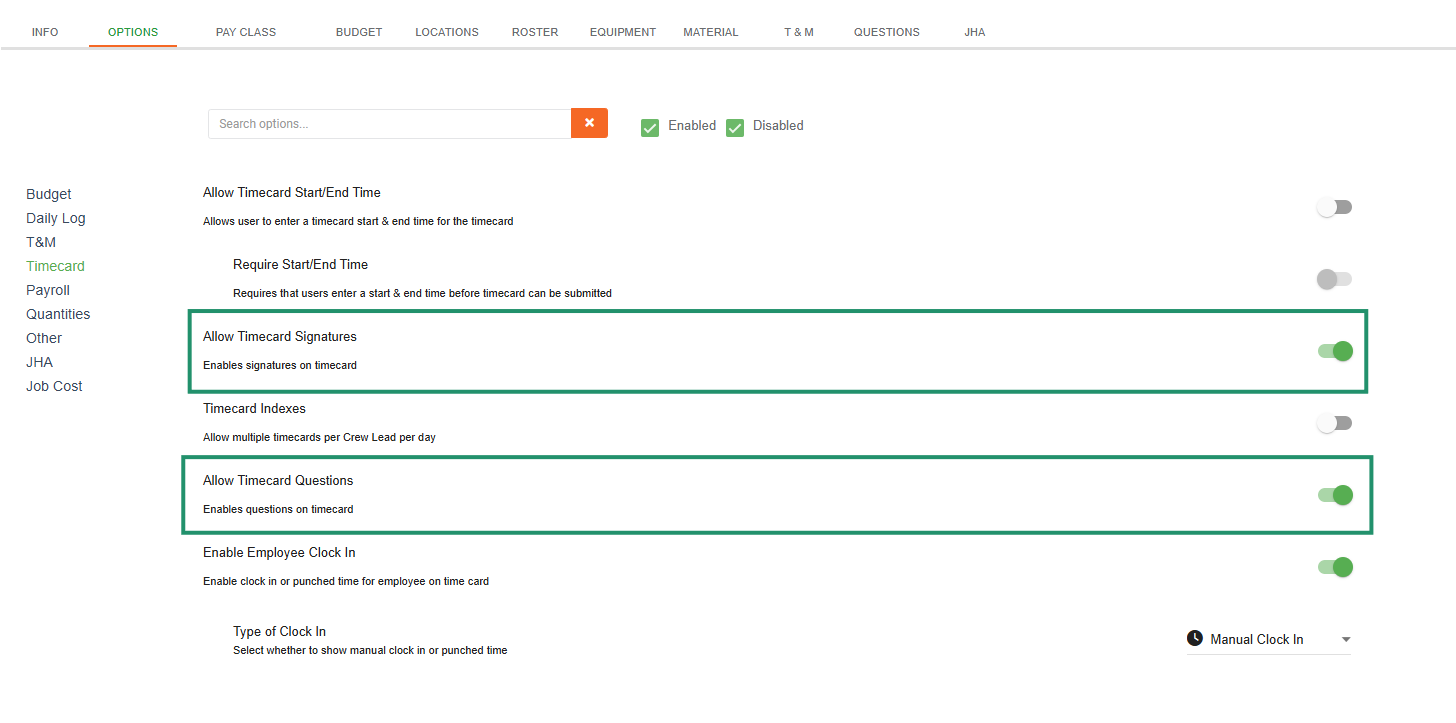
Turn on "Allow Timecard Questions" and/or "Allow Timecard Signatures"
-
Open the Questions Tab
-
Choose the appropriate Target (Daily Log, Time Card, Time Card Employee, or Attendance)
-
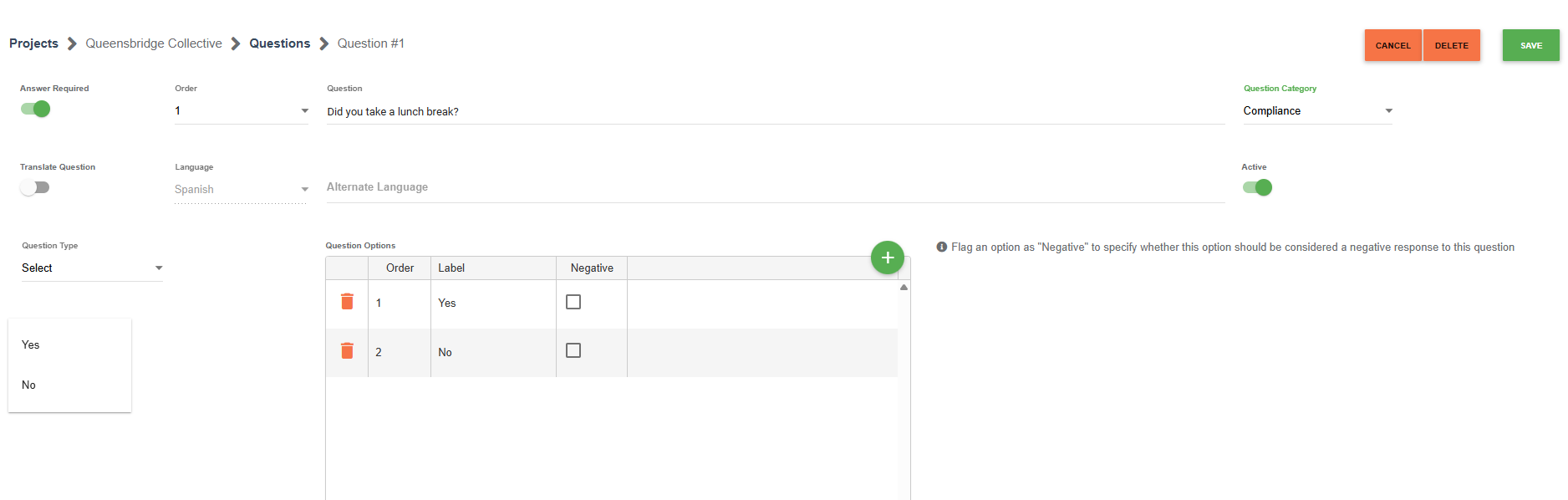
Click the Green “+” Icon to add a new question
Configure the Question
-
Enter the Question Text
-
Select the Question Type (e.g., multiple choice, text, etc.)
-
Add Response Options (if applicable)
-
Assign a Question Category
-
Click Save when complete
Optional: Translation
-
Enable Translation if needed
-
Select the desired language(s) for multilingual crews
Accessing Questions and Signatures on Timecards
-
Navigate to Time Cards & Payroll Module
-
Open the Calendar and select a timecard
Access Question Types
-
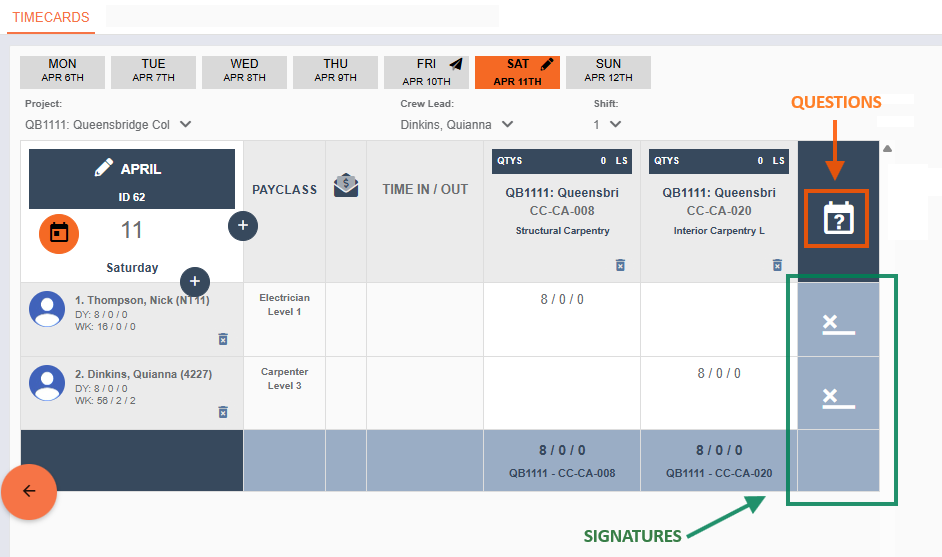
Timecard Questions
-
Located via the icon in the top corner of the timecard
-
-
Timecard Employee Questions
-
Accessible via the icon next to each employee row
-
-
Complete responses based on the configured question types
Capturing Employee Signatures
-
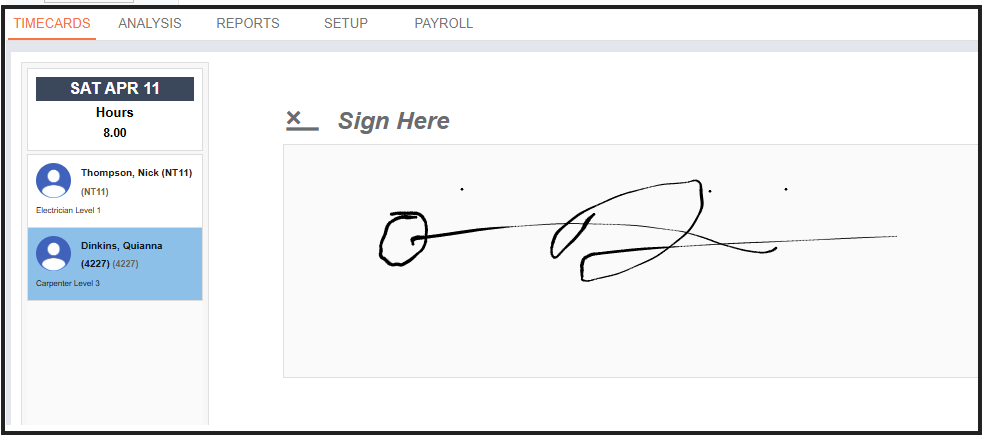
Employees can add their signature directly from the timecard
-
After signing, click Save to confirm
Key Notes:
-
You can navigate between employees using the left-hand panel
-
A visual indicator will appear on the timecard once a signature is added
-
Signatures act as acknowledgment of:
-
Time worked
-
Question responses submitted
-
Reporting on Question Responses
To access question data:
-
Navigate to:
Time Cards & Payroll → Reports → Timecard Report -
Apply the appropriate filters:
-
Project
-
Date range
-
Employees
-
-
Run the report to view:
-
Timecard question responses
-
Timecard employee question responses
-
Best Practices
To get the most value from Questions and Signatures, follow these recommended practices:
1. Align Questions with Compliance Needs
-
Use standardized questions for safety, compliance, and audits
-
Avoid unnecessary or redundant questions that may reduce adoption
2. Keep Questions Clear and Actionable
-
Use simple, direct language
-
Prefer multiple choice or yes/no when possible for consistent reporting
3. Assign the Right Question Type
-
Use:
-
Time Card Questions for supervisor-level input
-
Time Card Employee Questions for individual accountability
-
Attendance Questions for real-time validation
-
4. Leverage Signatures for Accountability
-
Require signatures for:
-
Time approval
-
Safety acknowledgments
-
-
Reinforces ownership and reduces disputes
5. Utilize Categories for Reporting
-
Group questions into logical categories (e.g., Safety, Compliance, Operations)
-
Makes reporting and filtering more efficient
6. Enable Translations for Field Adoption
-
Use translations when working with multilingual crews
-
Ensures clarity and improves response accuracy
7. Regularly Review and Optimize
-
Periodically evaluate:
-
Question relevance
-
Completion rates
-
Report usefulness
-
-
Remove or refine questions that are not adding value

