259
259
Why use Approver-Crew Lead Relationships?
You may have a project where there are various crew leads submitting timecards, and each crew lead has a designated approver that they report to. This feature allows you to, at your project level, assign your approvers to each individual trade foreman or superintendent responsible for filling out timecards. You can still have an approver that can view/approve all time, should you need a back up. But mostly, this allows you to set up a direct relationship between a crew lead and an approver. Below are the examples of how to set up your approver, as well as creating that relationship.
Creating a Timecard Approver Security Role
At the security role level, you can define the type of timecard approval rights. It’s worth noting that there’s a relationship between the user’s timecard approval rights, and the privilege to “Review All Foreman”. The table below details how the approval rights will work as related to the “review” rights.
Please note: this article is specific to the timecard approver permission. For a general article on how to manage and create security roles, refer to: Set Up: Security Roles
To create an approver role:
1. Go to Organization
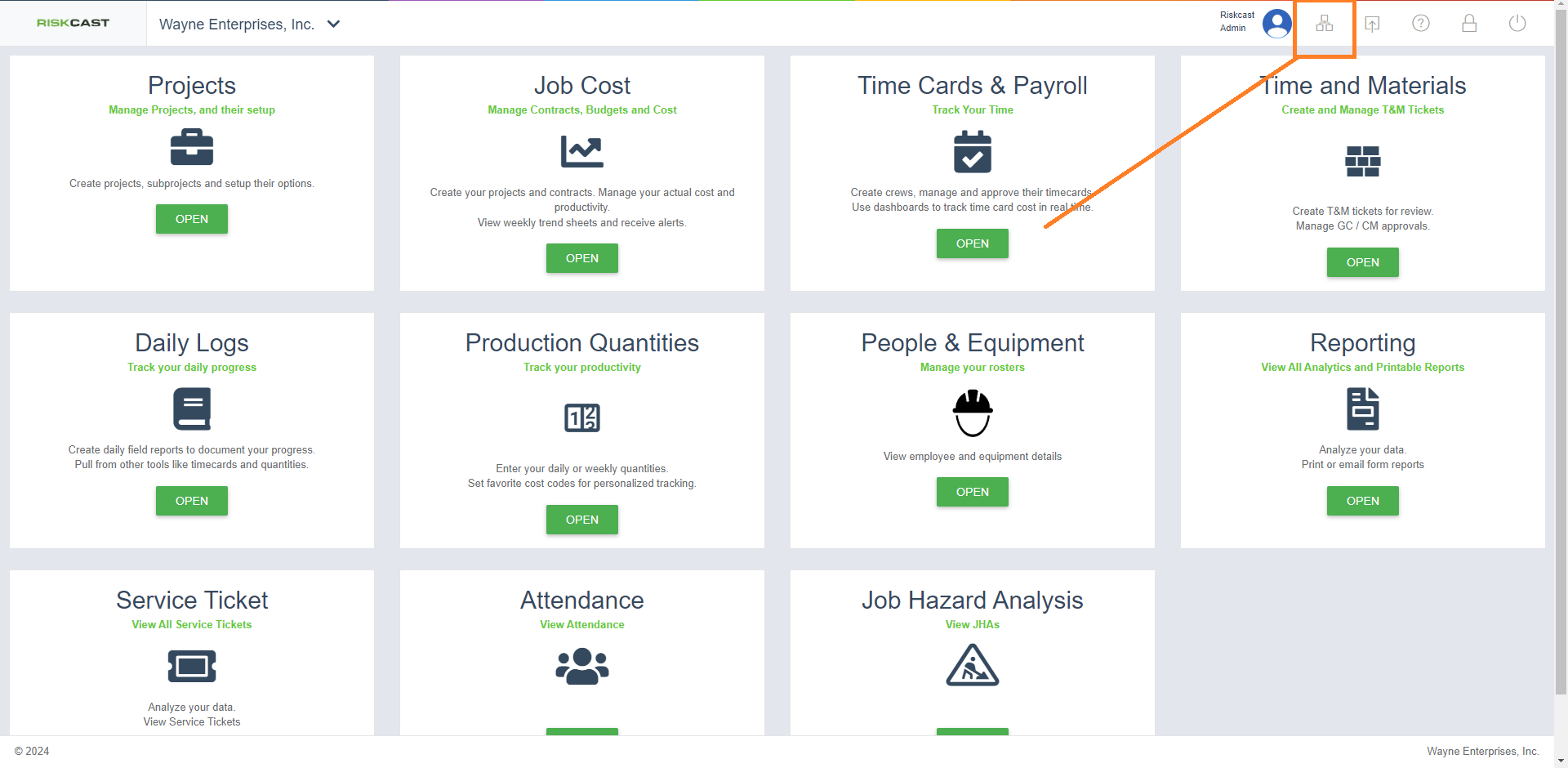
2. Select Security Roles
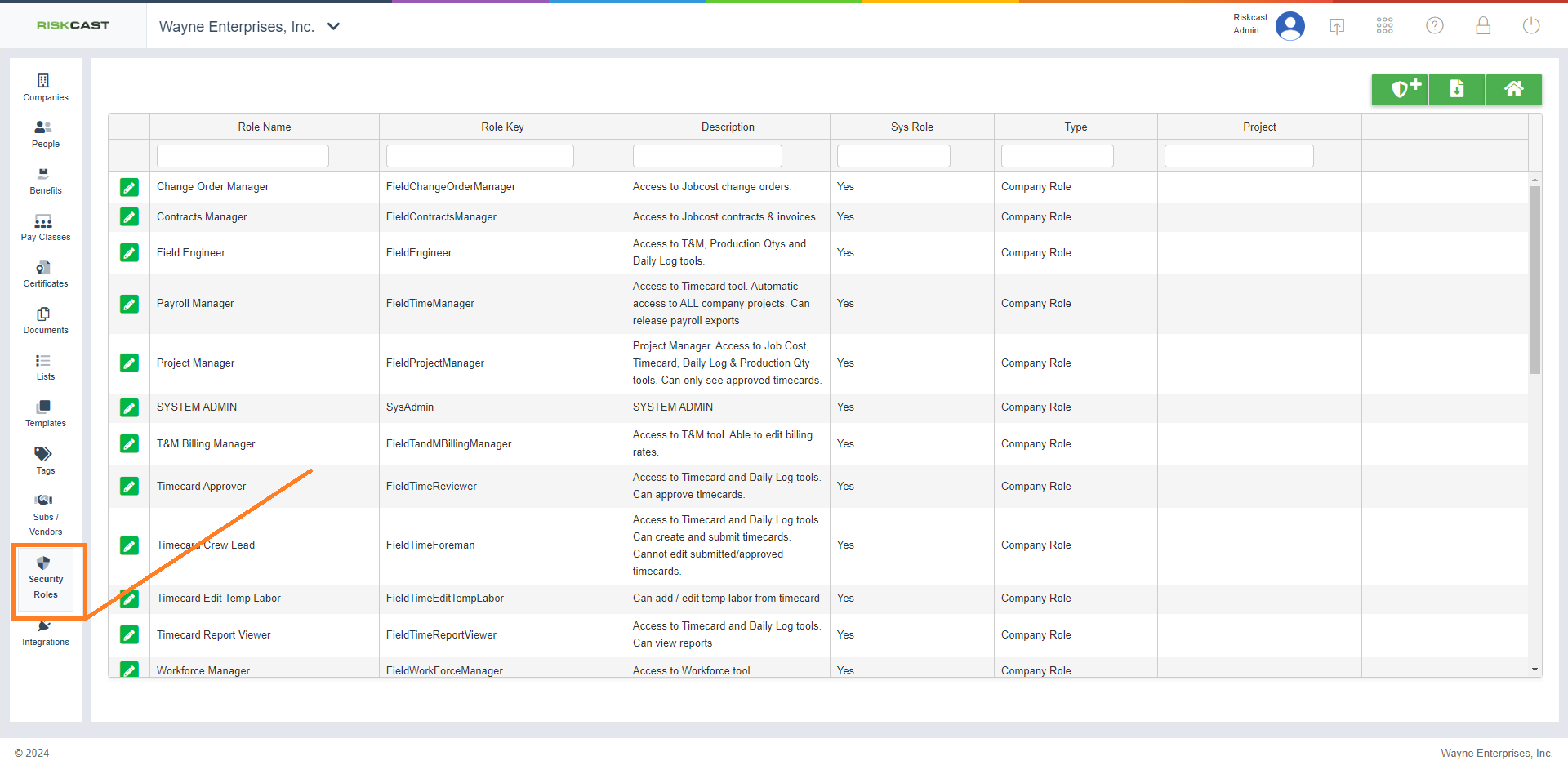
3. You can either create a new role, or start by copying an existing role.
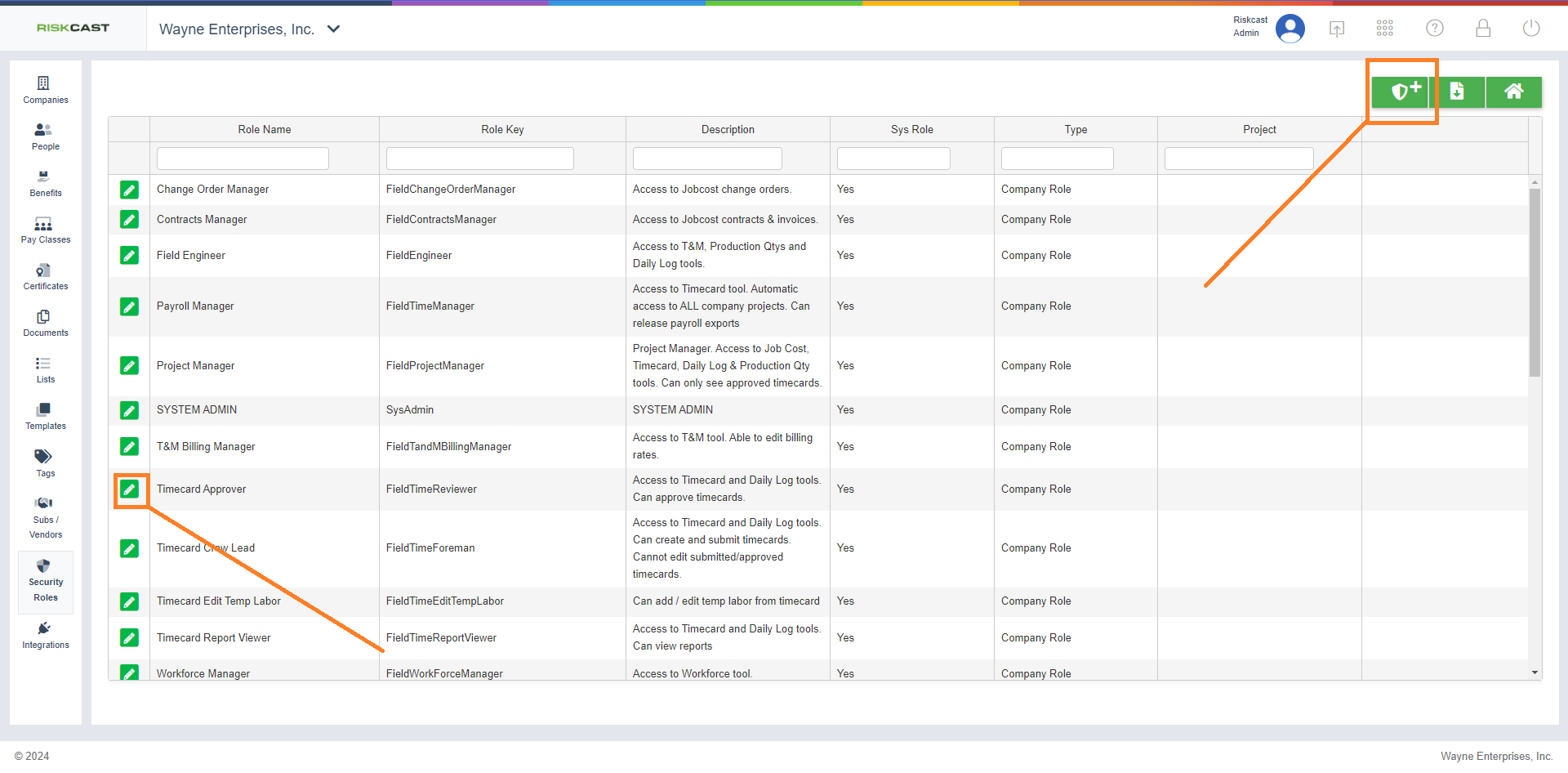
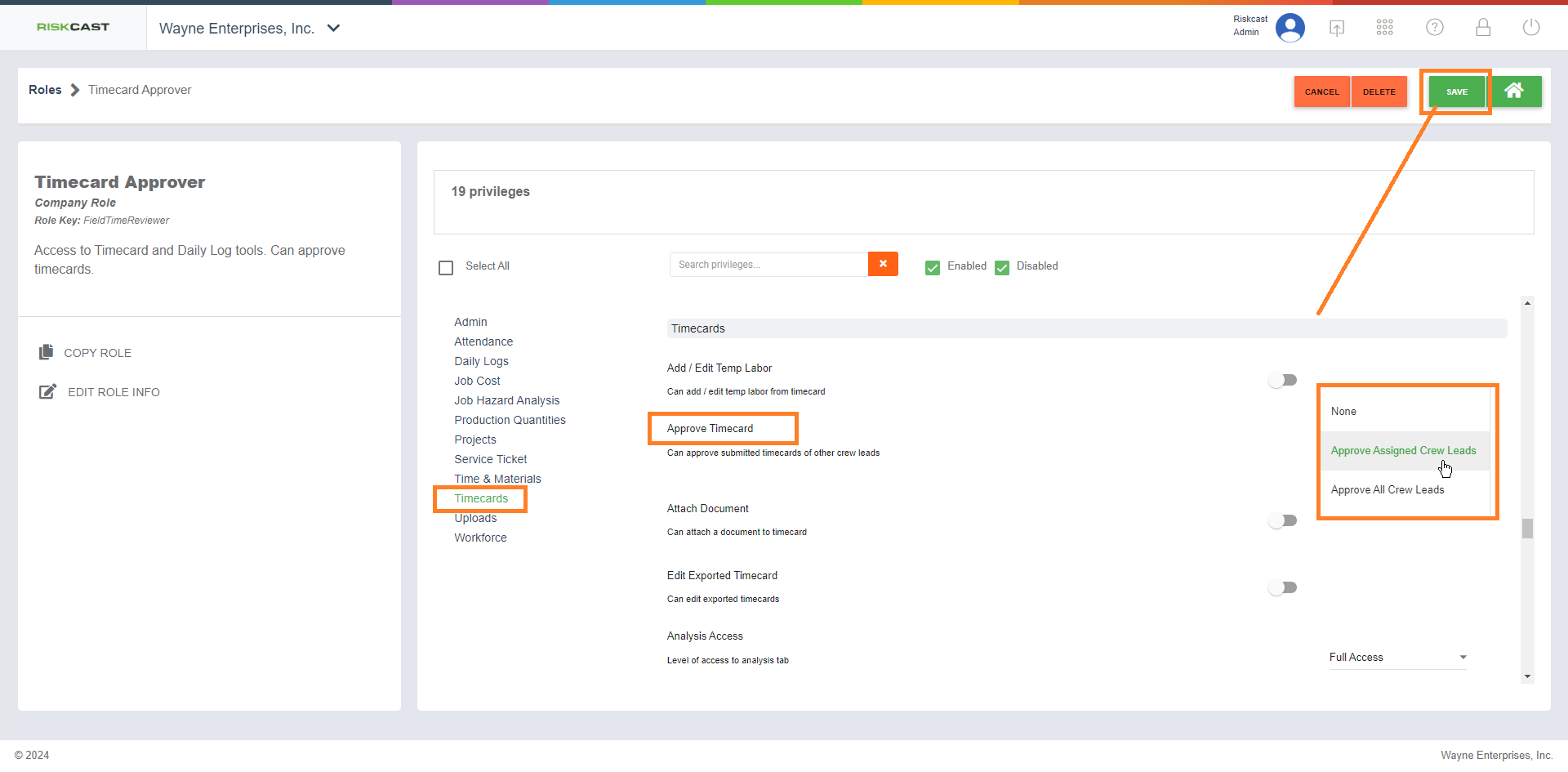
4. Within the timecard section, under “Approve Timecards” privilege, you must select if user is able to:
-
Approve All Crew Leads
-
Approve Assigned Crew Leads
-
None
Assigning Approvers:
Approvers for a project crew leads can be assigned either via the user set up or via the project roster. The approver list is generated by the users which have access to approve timecards for the specific job.
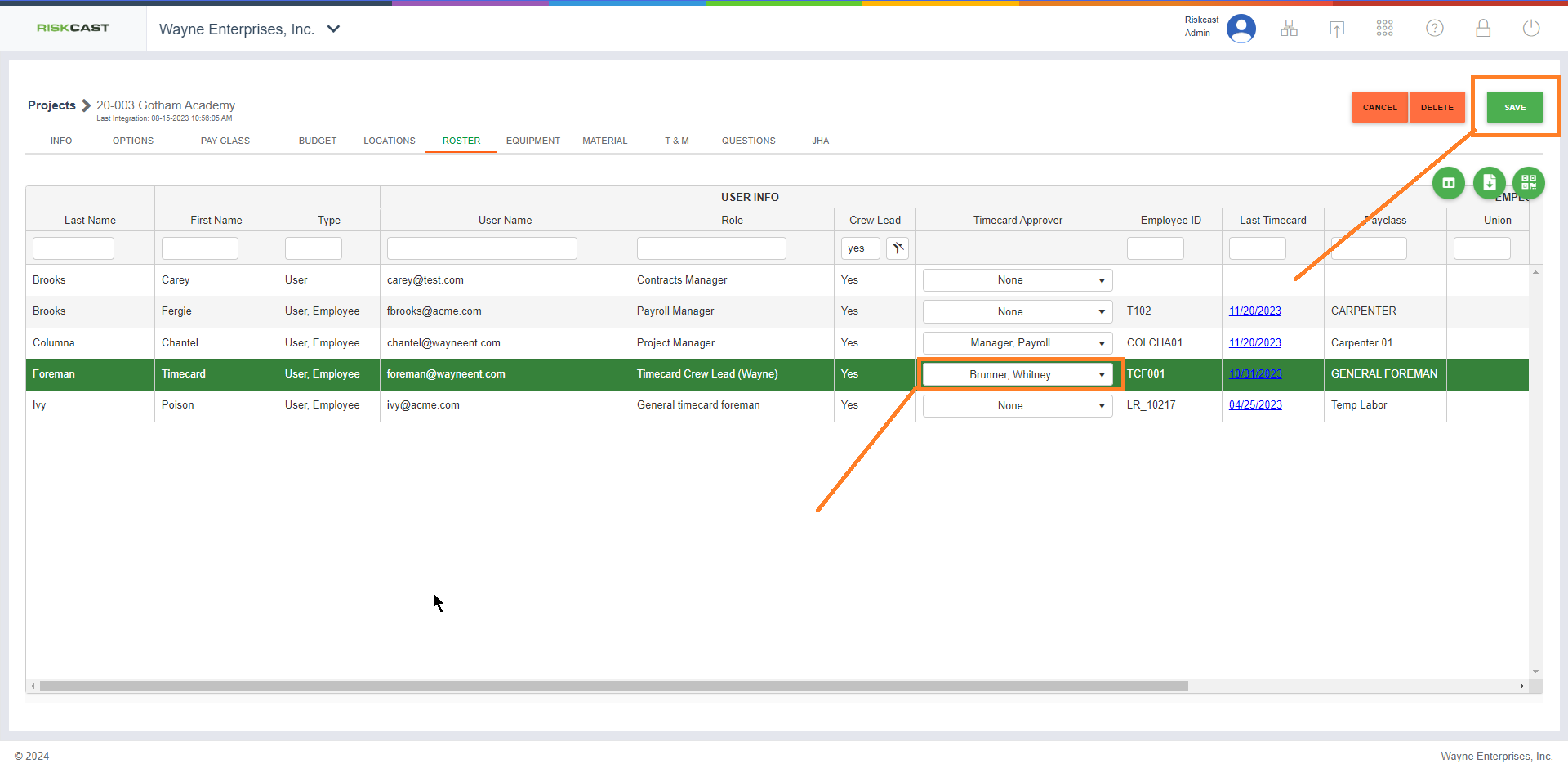
Assigning Approvers via Project Roster
1. Go to Project module
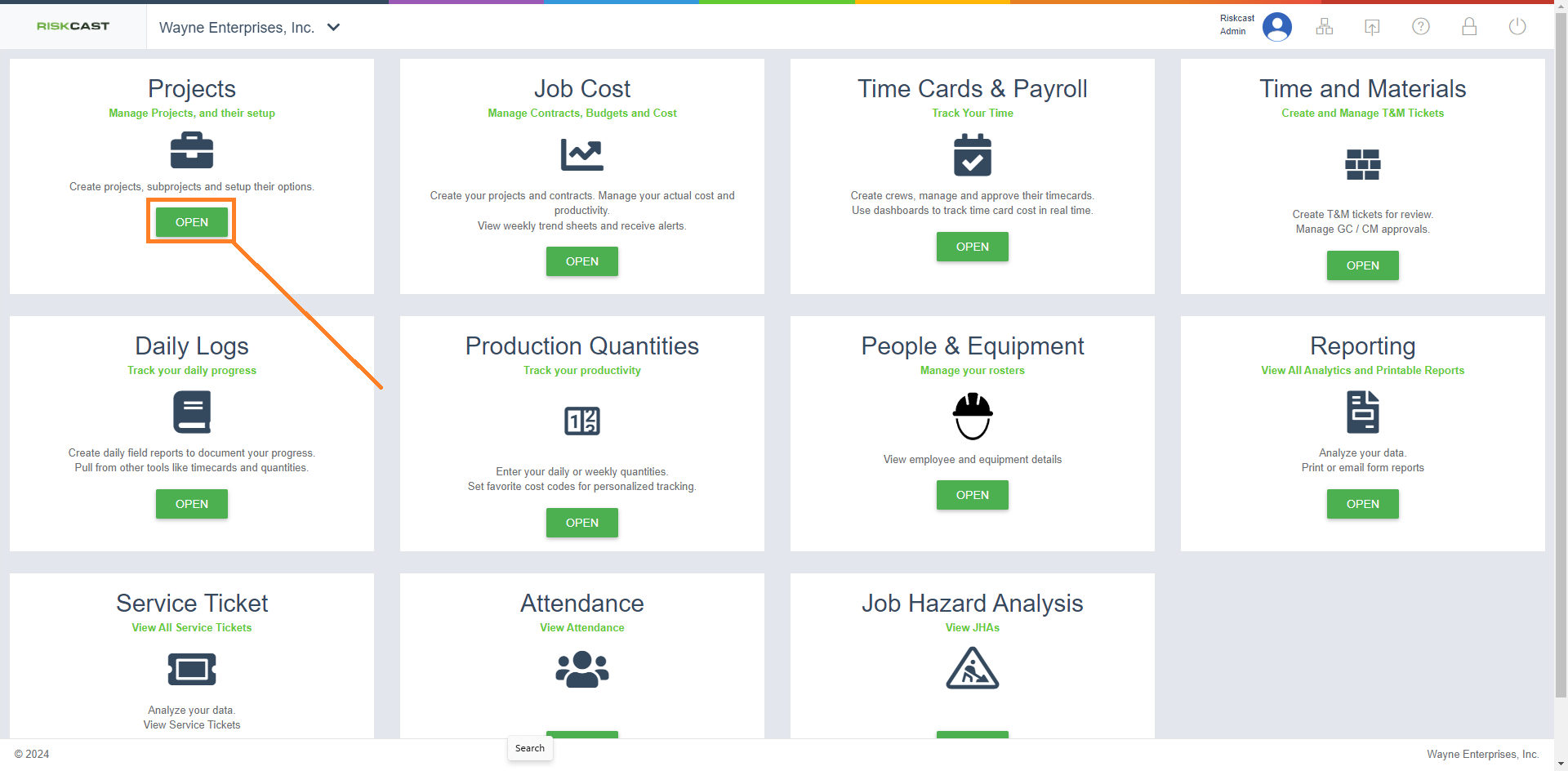
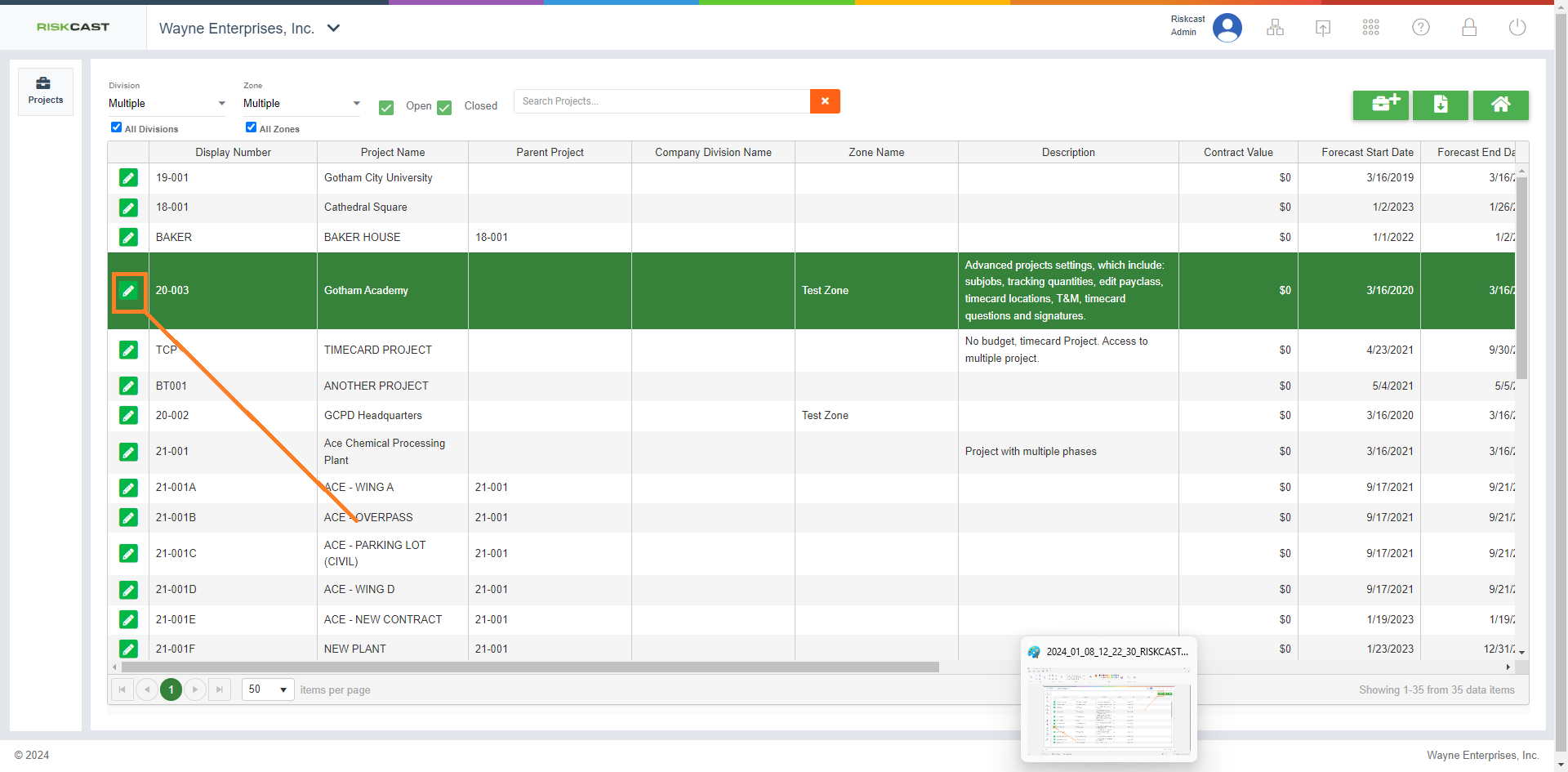
2. Select to edit project
3. Select the roster tab, and filter your view by who is a crew lead on your project.
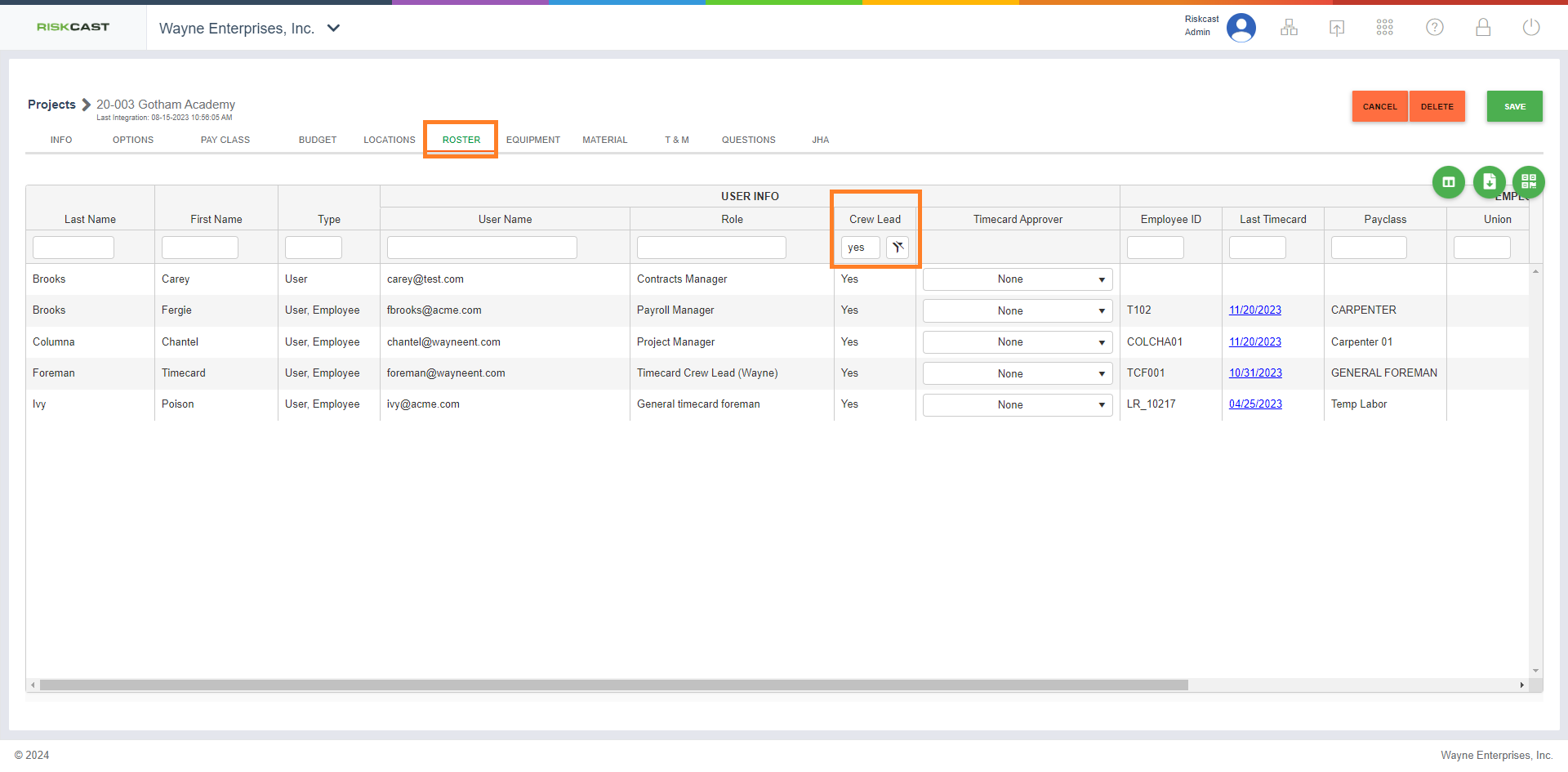
4. Next to each crew lead, you now have the ability to assign an approver. The approver list is generated by the users which have access to approve timecards for the specific job. Click save.
Assigning Approvers via User Set Up
Approvers for a project crew leads can be assigned either via the user set up or via the project roster.
-
Go to Organization> People

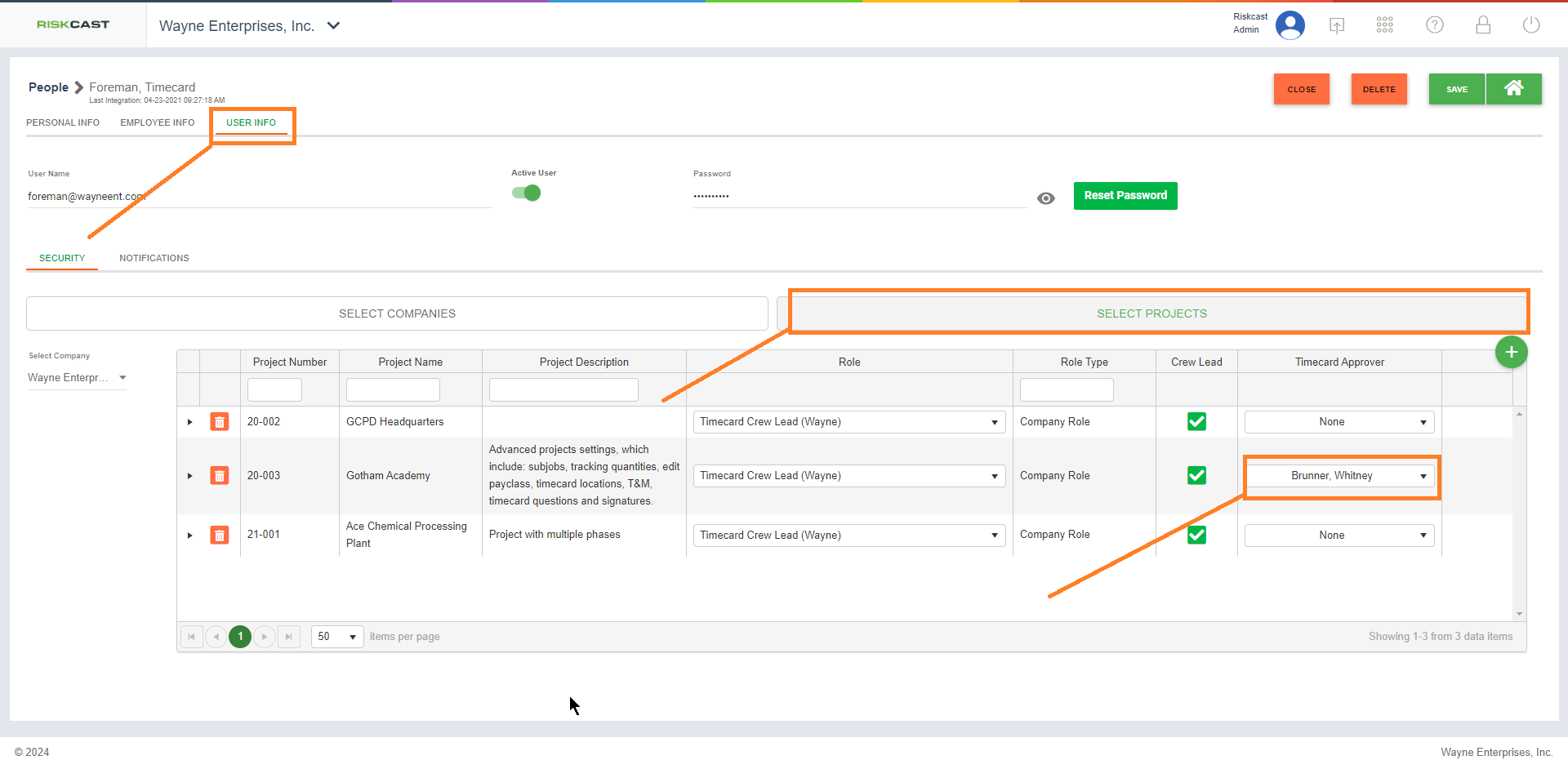
2. From the People tab, you can select to edit an existing employee/user.
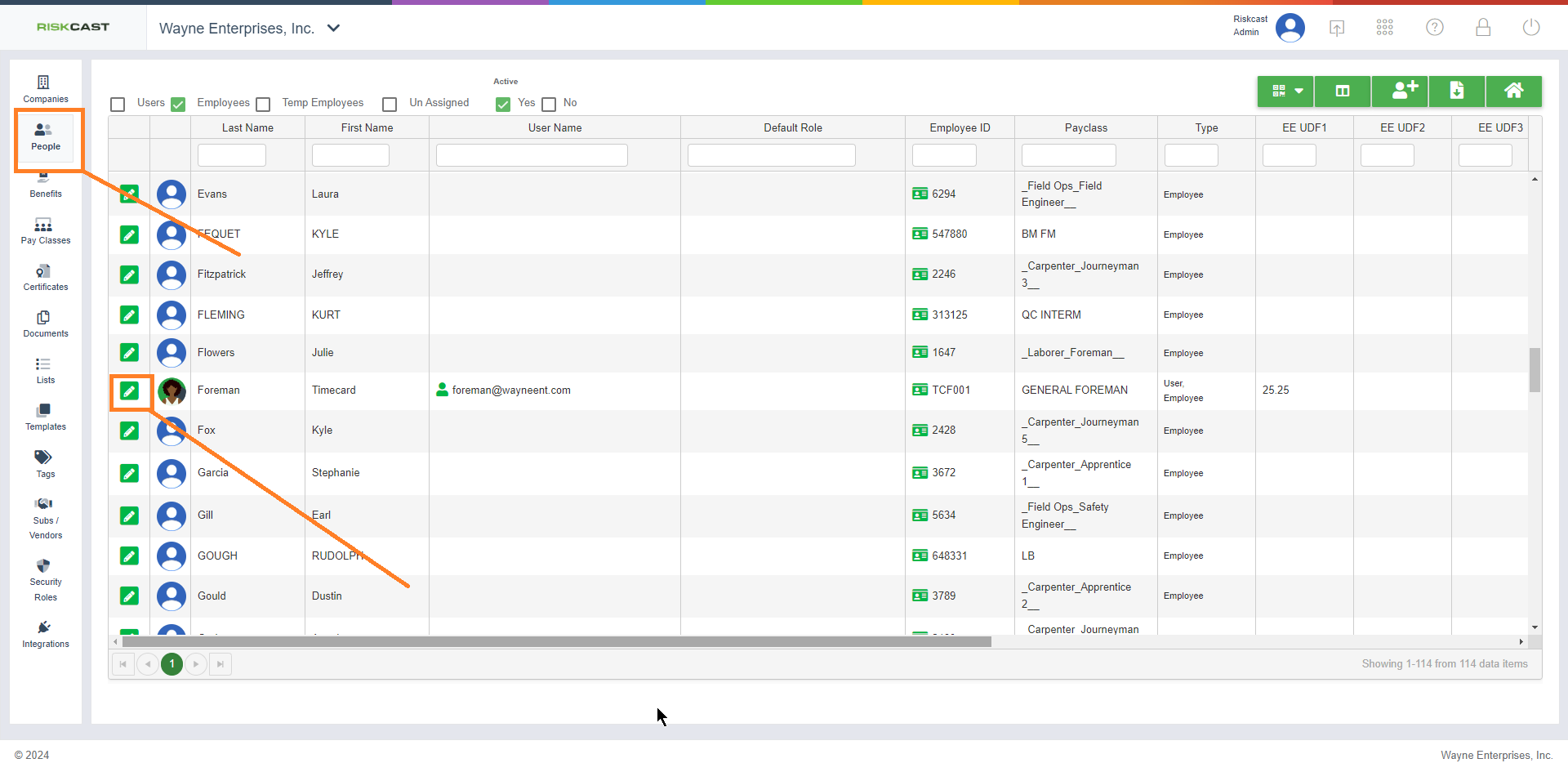
3. Within the User Info Tab, Select Project Tabs, and you'll be able to assign approvers from this screen. Click Save.