

Multiple Labor Cost Types
Last updated: Apr 27, 2026
722
views

Riskcast allows companies to configure and use multiple labor cost types to better control how labor is tracked and applied to cost codes.
When enabled:
- Each employee is assigned a specific labor cost type
- Employees can only log time against cost codes that match their assigned cost type
This helps ensure cleaner job costing, improved reporting accuracy, and prevents misclassified labor.
When to Use Multiple Labor Cost Types
This feature is especially useful when:
- Different types of labor need to be tracked separately (e.g., field vs. shop, union vs. non-union)
- Cost codes are tied to specific labor classifications
- You want to enforce stricter controls on time entry
Configuring Multiple Labor Cost Types
To enable this setting:
- Navigate to Company Options
- Select the Job Cost tab
- Enable Allow Multiple Labor Cost Types
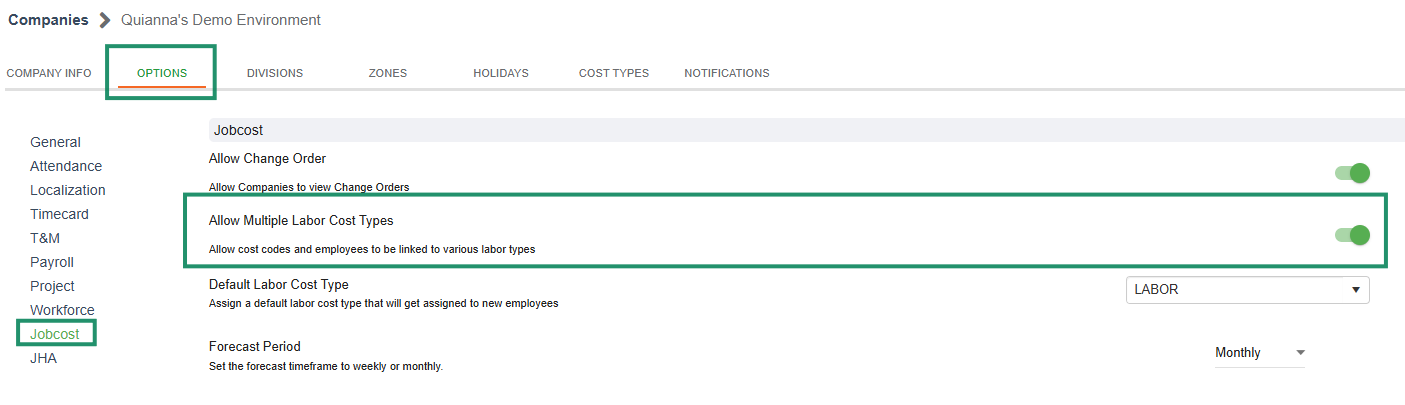
Once enabled:
- A Default Cost Type will be assigned (initially “L - Labor”)
- This default applies to all employees until updated
- After creating additional cost types, you can update the default as needed
- Updating the default will automatically update all employees to that new default cost type
Managing Cost Types
Viewing Cost Types
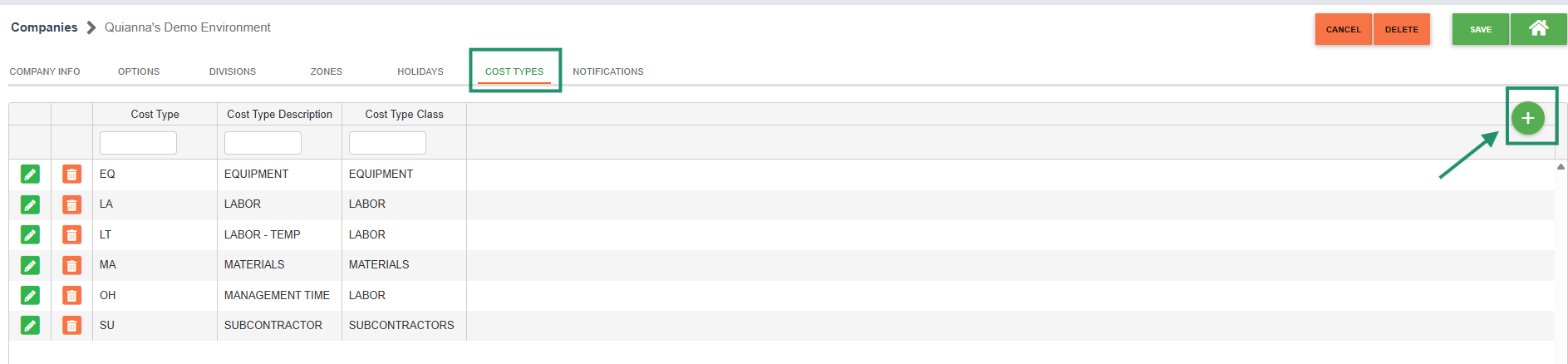
- Navigate to the Cost Types tab within your company settings
- Review the list of existing cost types
Adding a New Cost Type
- Click the “+” button
- Complete the required fields
- Save your changes
Editing a Cost Type
- Click the pencil icon next to the cost type
- Update the necessary fields
- Save your changes
Assigning a Cost Type to an Employee
To link an employee to a cost type:
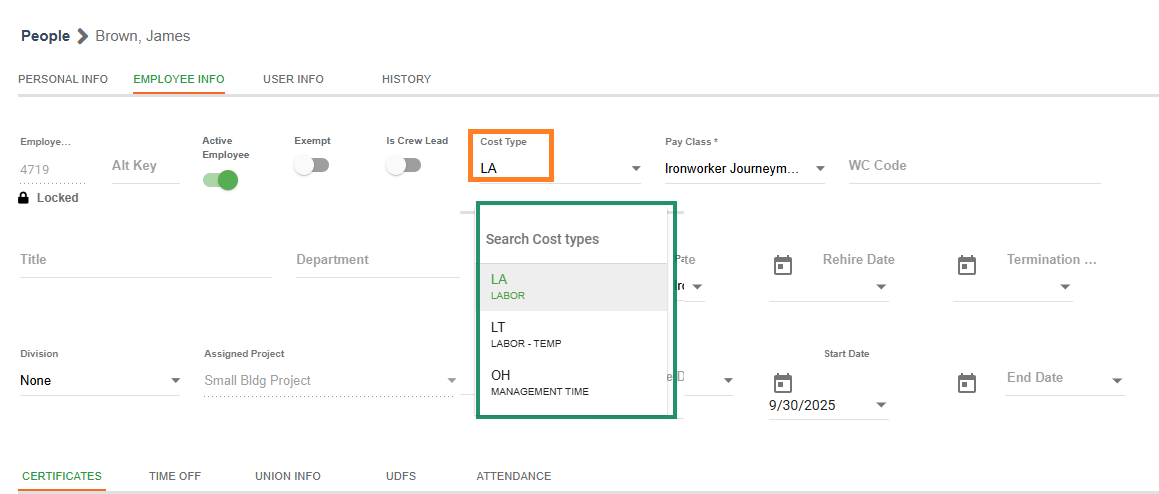
- Navigate to the employee’s record
- Go to the Employee tab
- Select the appropriate Cost Type from the top section
Note:
This field will only appear if multiple labor cost types are enabled.
How Timecards Work with Multiple Labor Cost Types
Once configured, timecard behavior changes to enforce cost type rules:
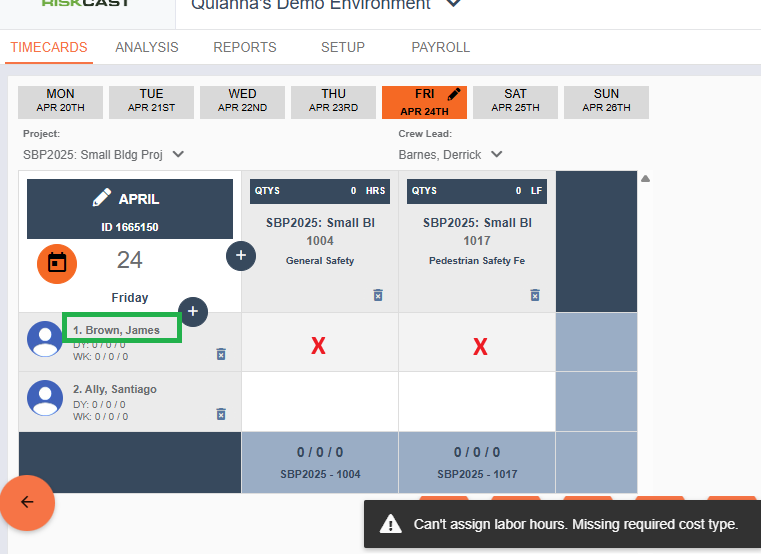
- When entering time, only valid cost code combinations will be available
- Time entry cells will behave as follows:
- Disabled:
If the cost code does not include the employee’s assigned cost type - Enabled:
If the cost code does include the employee’s assigned cost type
- Disabled:
This ensures employees can only charge time to appropriate cost codes.
Best Practices
- Define cost types before rollout: Establish clear categories (e.g., Labor, Shop, Operator) before enabling the feature.
- Align cost codes with cost types: Ensure cost codes are configured to accept the correct labor cost types.
- Train administrators first: Misconfiguration at the cost code or employee level can block time entry.
- Roll out in phases if needed: Start with a test project or group before enabling company-wide.
- Audit regularly: Periodically review employee assignments and cost code mappings for accuracy.
Common Mistakes to Avoid
- Enabling the feature without configuring cost codes first
- Assigning employees to incorrect cost types
- Changing the default cost type without understanding the impact
- Not communicating changes to field teams (can lead to confusion when entering time)

